Recut it into something new
Turn a longer product video into short cuts with new hooks and no leftover captions.
AI subtitle and text removal
Use AI to remove burned-in subtitles, text and overlays from footage you own. Reconstruct the covered area, review the result, then add new captions or translate the video for another market.
Clean footage you own · Recut and recaption for the next campaign
Drag to compare the same shot before and after subtitle removal.
Clean the frame
Make a new cut
Add your own message
Run another market
TRY YOUR OWN VIDEO
Choose a video with burned-in subtitles or on-screen text.
Why clean footage matters
A useful shot can do more than one job when the old words are no longer baked into it.
Turn a longer product video into short cuts with new hooks and no leftover captions.
Test another offer or angle on footage you already paid to create.
Remove old captions before adding translated text and a localized voice.
Put clean close-ups and product shots into new ad variations.
What happens to the frame
Vibbit works to reconstruct the covered area from nearby visual information. The result depends on what the text covered and how much background is available.
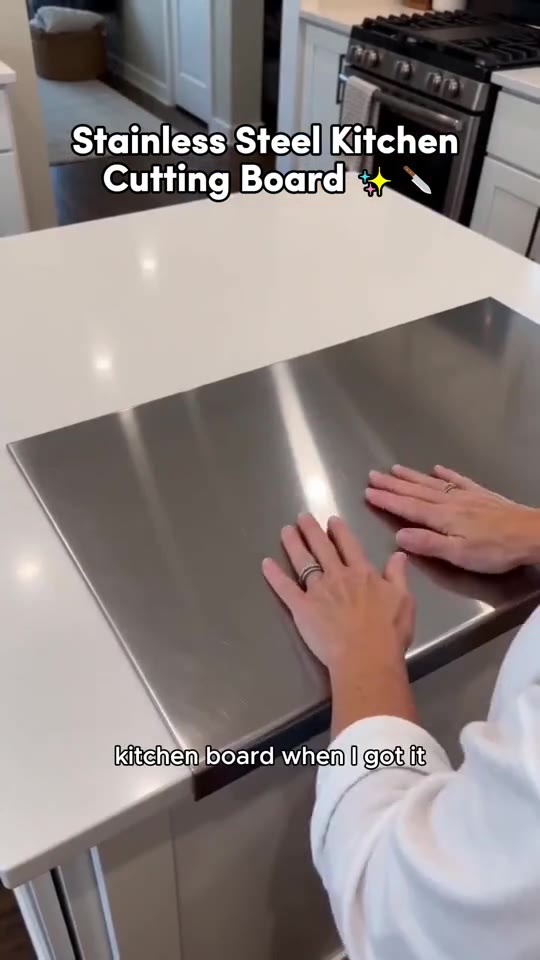
Original
Blur
Black box
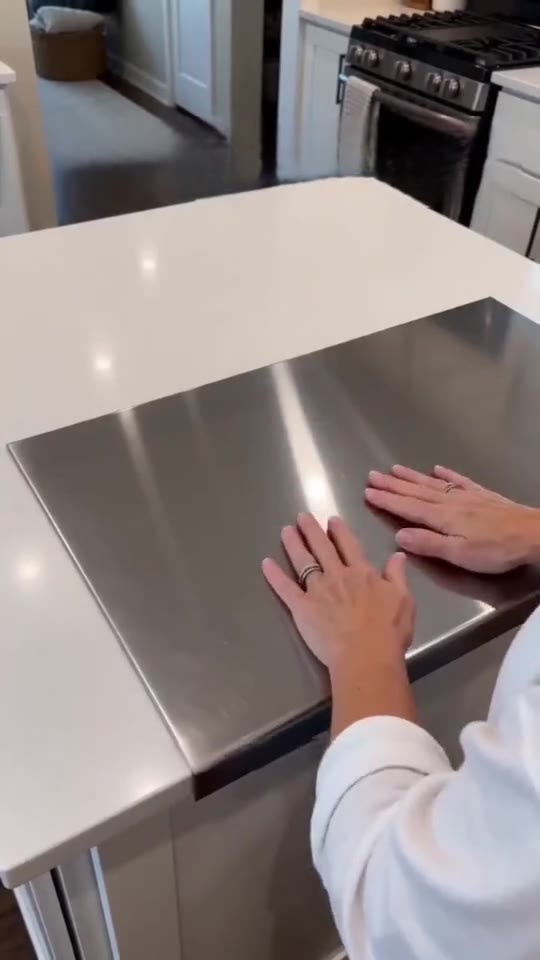
AI Removal
What you can clean
Text embedded in the video image, including outlines and backgrounds.
Corner marks and other visible overlays on footage you own.
Emoji, arrows, badges and decorative elements over the shot.
Expired prices and claims that should not travel into the next campaign.
How it works
Clean the original once, then make the next version from footage that is ready for new words.
Choose footage you own and mark the text or overlay to remove.
The tool fills the space using visual context from the surrounding frames.
Download the cleaned result or continue editing it in your workspace.
Before you upload
The amount of visible background matters. Review the cleaned clip before you use it in an ad.
Fine detail behind text can leave a soft patch after reconstruction.
If words cover a face or product, the missing detail must be inferred.
A frame covered by a title card may not have enough context to rebuild.
Removing a watermark does not give you rights to someone else’s video.
Practical questions
Yes, the tool is designed for burned-in subtitles that are part of the video image. It reconstructs the area they cover. If your subtitles are a separate track or SRT file, disable that track in your editor instead; the original image does not need reconstruction.
The tool aims to reconstruct the covered area. Simple backgrounds are easier; detailed or moving backgrounds can still show artifacts.
Yes. A clean frame gives you space for new captions. Pair it with video translation when the voice and spoken message also need to change.
You can use the workflow across a library of owned footage. Check the current workspace limits before planning a large batch.
Removing a mark does not change ownership or usage rights. Use this workflow on footage you own or have permission to edit and publish.
Clean one clip and give it another life with your next message.
Get my footage backOpen the subtitle removal tool in Vibbit