How to Add Subtitles to a Video Automatically with an Auto Subtitle Generator
Add subtitles to any video automatically. Upload, let Vibbit's auto subtitle generator transcribe the speech, fix errors and pick a subtitle style.
The easiest way to add subtitles is an AI auto subtitle generator. With Vibbit, you upload your video, let it transcribe the speech into subtitles, fix anything it got wrong, and pick a subtitle style.
If you make YouTube videos, TikToks or Instagram Reels, or add captions to Shopify and Amazon product videos, this saves you from typing every line. It's built for creators, teachers and sellers who publish regularly.
Step 1: Upload your video and generate subtitles
Open Tools → Auto Subtitles in Vibbit and upload the video. It can be a finished YouTube video, a TikTok, an online lesson or a product demo.
Vibbit recognizes the speech and creates matching subtitles, so you don't start from a blank page. Record a product tutorial, upload it, and check the subtitles instead of transcribing the whole thing.
Keep in mind that automatic subtitles are a first draft. Loud background music, unclear speech or lots of technical terms all mean you should review the result.
Step 2: Fix any recognition errors
Speech recognition is good, but it won't get every word right. Names, brands, product models, jargon and strong accents are worth checking.
In Vibbit's subtitle editor you can play each line, search, find and replace, and click any line to correct it.
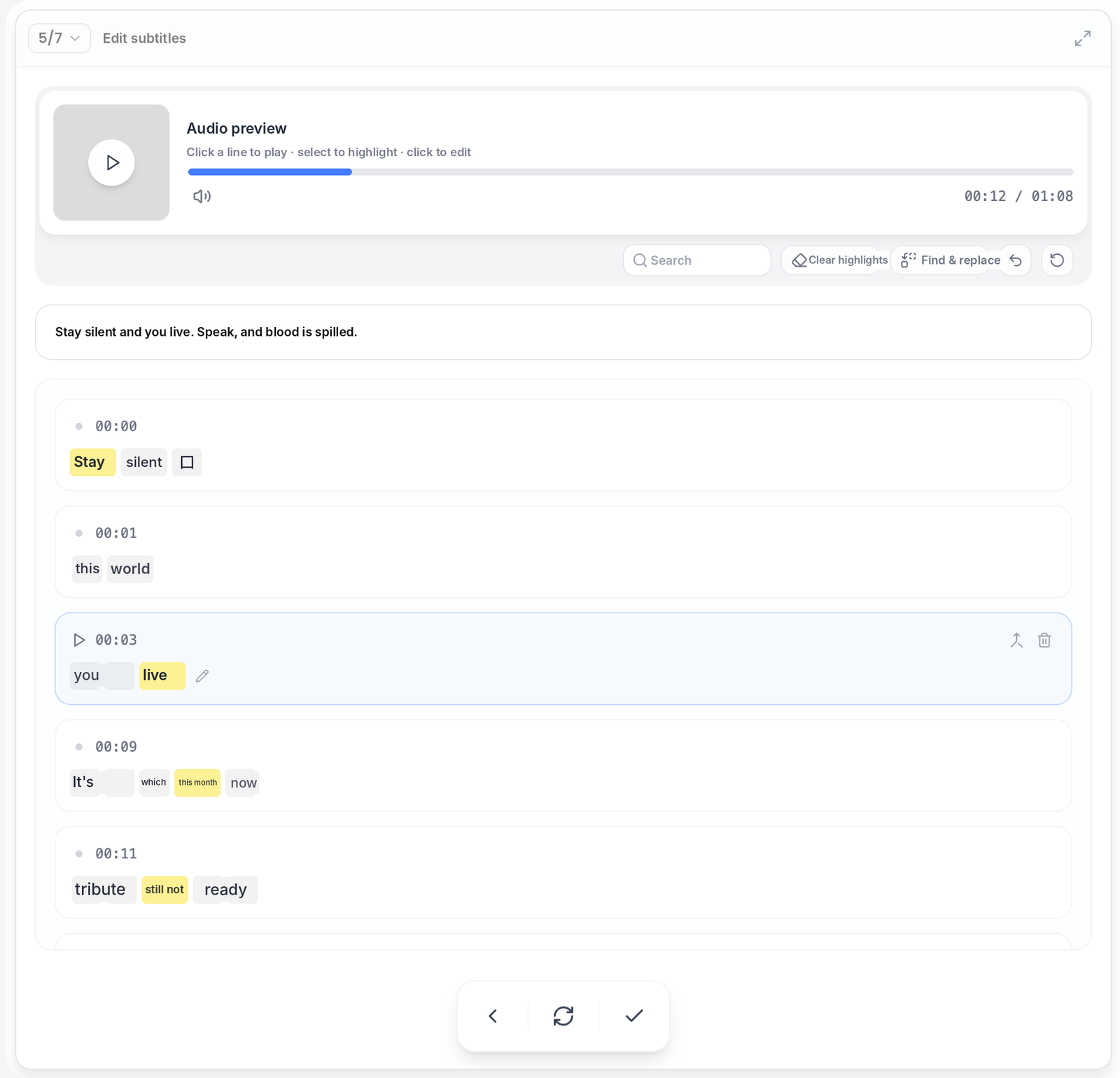
Check in this order:
- Spelling: the words match what's actually said.
- Brand and product names: they're spelled correctly.
- Sentence breaks: lines aren't split in odd places.
- Technical terms and numbers: especially in lessons and product videos.
If you're making a demo for your Shopify store and the product name comes out wrong, viewers can't tell what you're selling, even if the video looks great. Fix the text before moving on.
Step 3: Choose a subtitle style
Once the text is right, pick a style that suits the video.
Subtitles affect how easy the video is to watch. For tutorials, go for clear and readable. For TikTok and Reels, you can pick something with more personality that matches your video's look.
| Video type | Style tip |
|---|---|
| YouTube tutorial | Clear text that's easy to follow |
| TikTok | Match the pace and visual style |
| Instagram Reels | Keep subtitles in balance with the main subject |
| Online course | Clean and readable, nothing distracting |
| Shopify or Amazon product video | Don't cover the product or key details |
After choosing, check how the subtitles look on the video. If they blend into the background or cover the product or a face, try another style or position.
Tips for better automatic subtitles
- Start with clear audio. Loud music, people talking over each other or mumbled lines mean more fixes.
- Always check brand names and jargon. Don't skip them just because most lines are right.
- Pick readability over flair. Subtitles should help viewers, not distract them.
- Check on the target platform. YouTube, TikTok and Instagram overlay their interfaces differently. Make sure nothing important is covered.
- Make it a routine. Upload, transcribe, fix, style. A steady routine catches mistakes before you publish.
FAQ
What is an auto subtitle generator?
It's a tool that recognizes the speech in a video and turns it into subtitles. In Vibbit, you upload the video, get the subtitles, fix the text and choose a style.
Do I still need to edit the subtitles?
Check them, yes. Speech recognition can trip on brand names, jargon and unclear audio. You can correct any line in Vibbit's subtitle editor.
What kinds of videos is it good for?
YouTube videos, TikToks, Instagram Reels, online lessons and product videos. Anything with speech.
Can I change the subtitle style?
Yes. After fixing the text, pick a style that fits the video and check that it's easy to read.
Can I add subtitles in another language?
To publish in another language, use Vibbit Video Translation. It translates the speech, creates new subtitles and can dub the video.
Make subtitles the easy way
You don't need to type every line to add subtitles. With Vibbit, you upload, let it transcribe, fix the text and pick a style, so you can spend your time on the content itself.
Add subtitles to your next video on vibbit.ai.