How to Make Talking Videos Without Showing Your Face: AI Avatar Video Generator Guide
Make talking videos without being on camera. Use Vibbit's AI avatar video generator: pick or clone an avatar, add a script, preview the voice and generate.
Want to post talking-head videos without being on camera? An AI avatar video generator like Vibbit does it in three steps: choose an avatar, add your script, and generate the video. If you'd rather appear as yourself, you can also clone your own avatar from a short video of you talking to the camera.
For solo founders, creators and teachers who post regularly on YouTube, TikTok or Instagram, this cuts out most of the filming. You don't have to set up a shoot every time. Write a script for the topic and generate.
How to make an AI avatar video in Vibbit
There are three steps: pick an avatar, prepare the script, generate. Along the way you can preview the voice and add B-roll.
Step 1: Pick an avatar, or clone your own
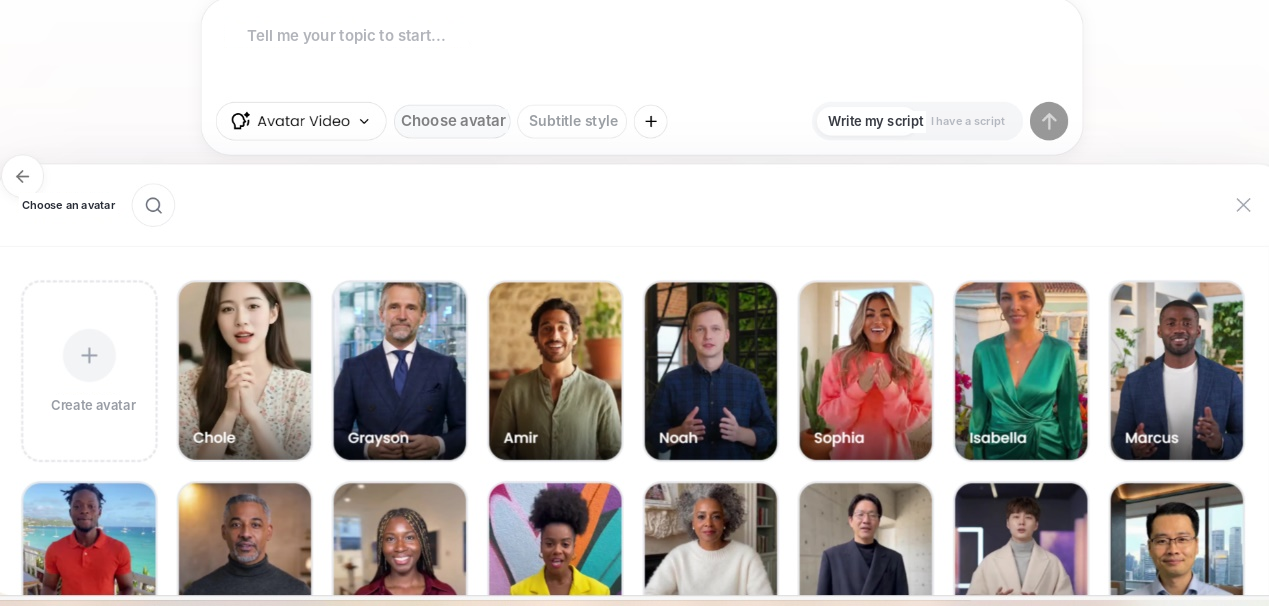
First decide who's on screen. You can pick from Vibbit's ready-made avatars or create your own.
If you don't want to appear on camera, choose one of the existing avatars. That works well for product explainers, tips and tutorials.
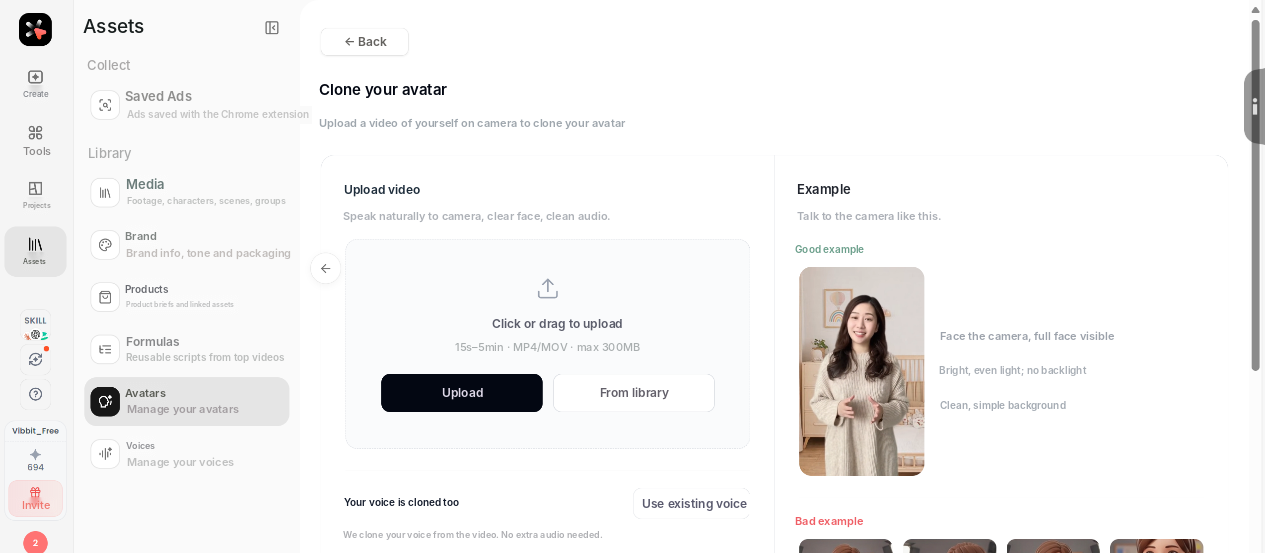
To use your own likeness, open Assets → Avatars → Clone your avatar and upload a short video of yourself talking to the camera. Face the camera with your full face visible, use bright, even light and keep the background simple. Your voice is cloned from the same video, so you don't need to upload separate audio. Once your avatar passes review, you can use it in any video.
Step 2: Write the script and preview the voice
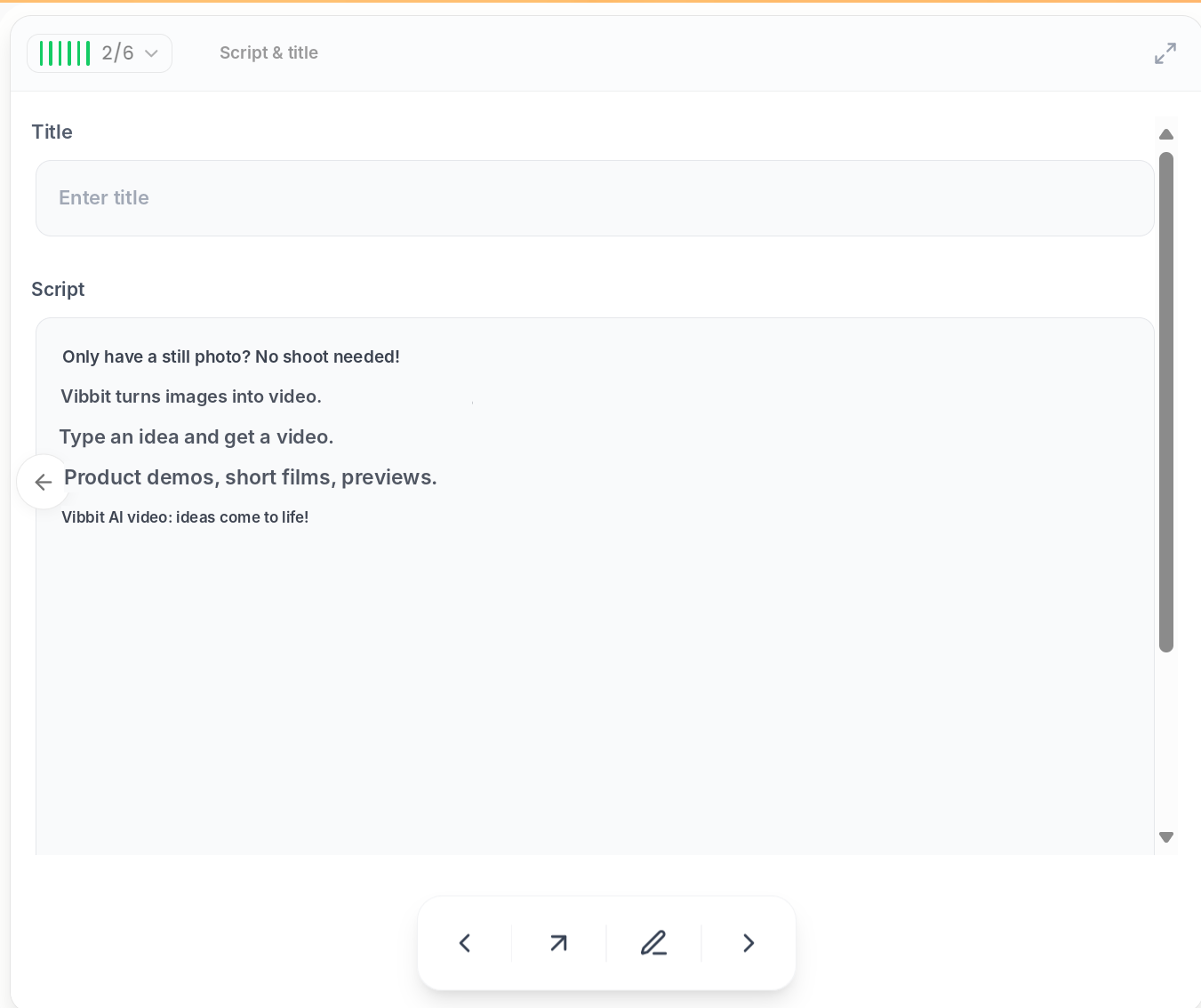
Next, add your script. Type or paste your own, or click Write my script and let Vibbit draft it.
If you already know the topic, say a Shopify product intro, a YouTube tip or a lesson from your course, list the key points first, then turn them into the script. If Vibbit drafts it, read it through and check product names, terms and numbers.
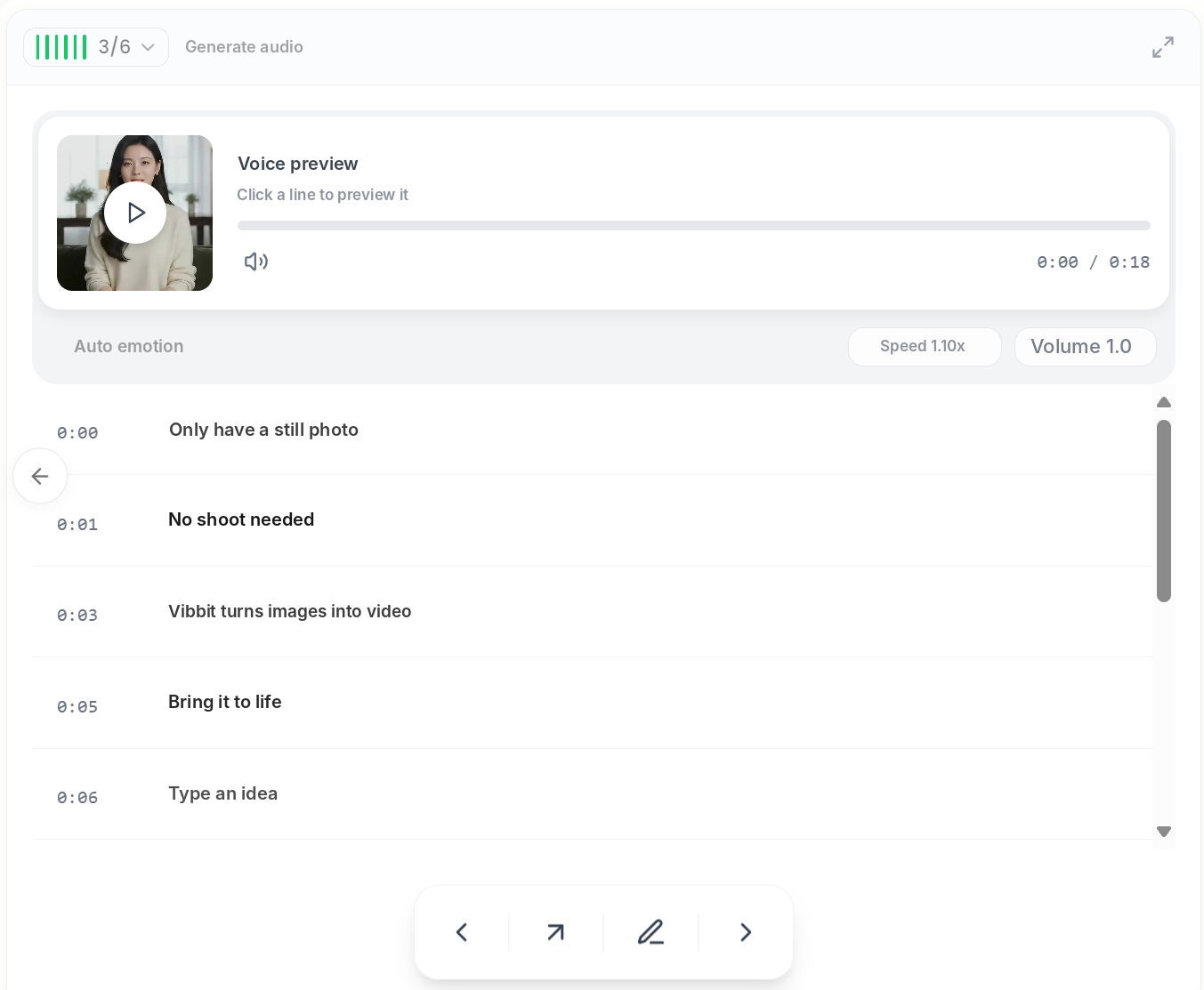
Then preview the audio. You can click any line to hear it and adjust speed and volume. This step is worth keeping: you'll hear problems before you generate the video.
Want more than a talking head? Add B-roll: product close-ups, use scenes or detail shots. Vibbit cuts them in to match the script. It's optional, so you can skip it and go straight to the avatar video.
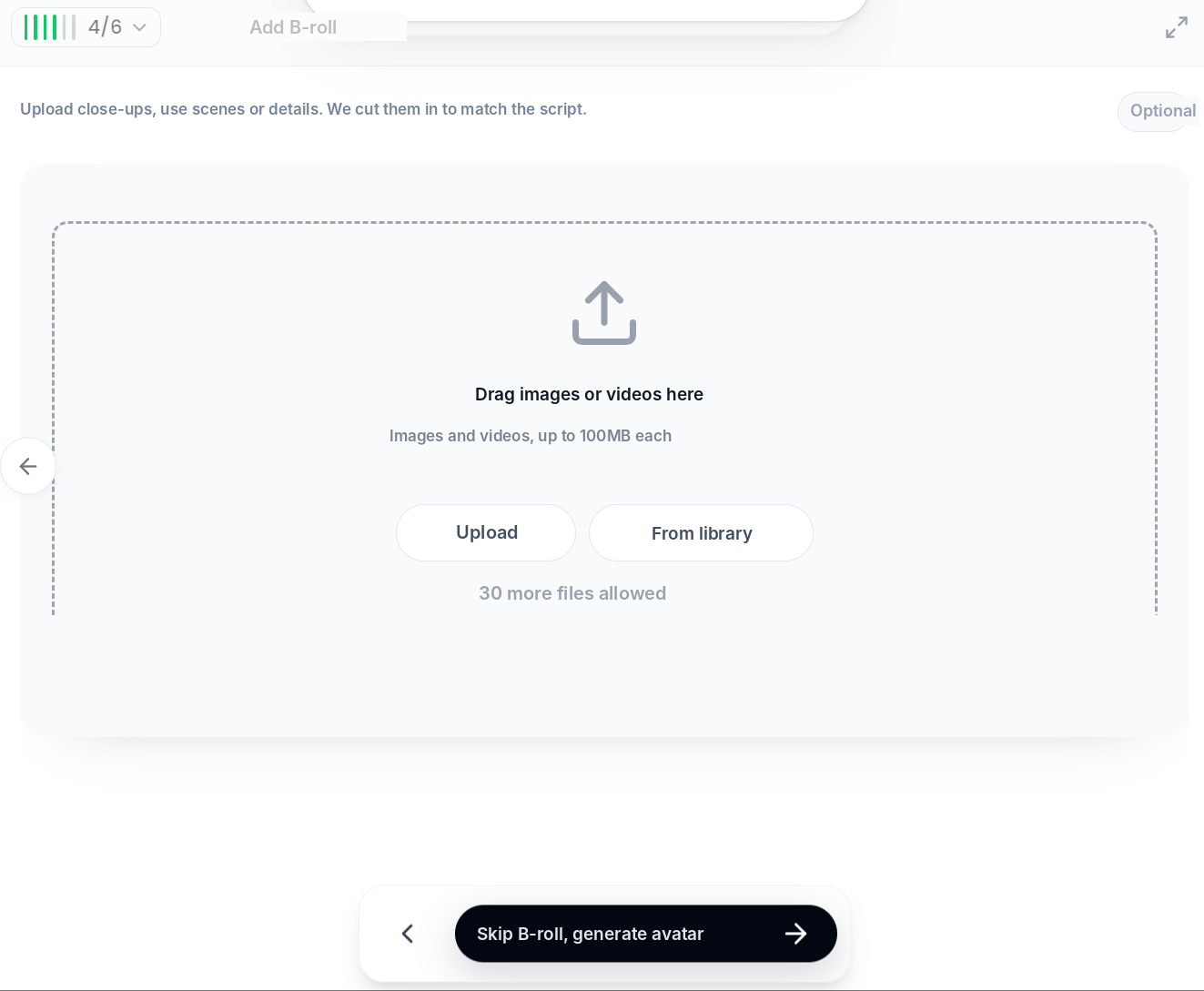
Step 3: Check and generate
Once the avatar, script, audio and any images look right, choose a template and background and generate the video.
Read the script one more time before generating. If you added scene images, make sure they fit the topic.
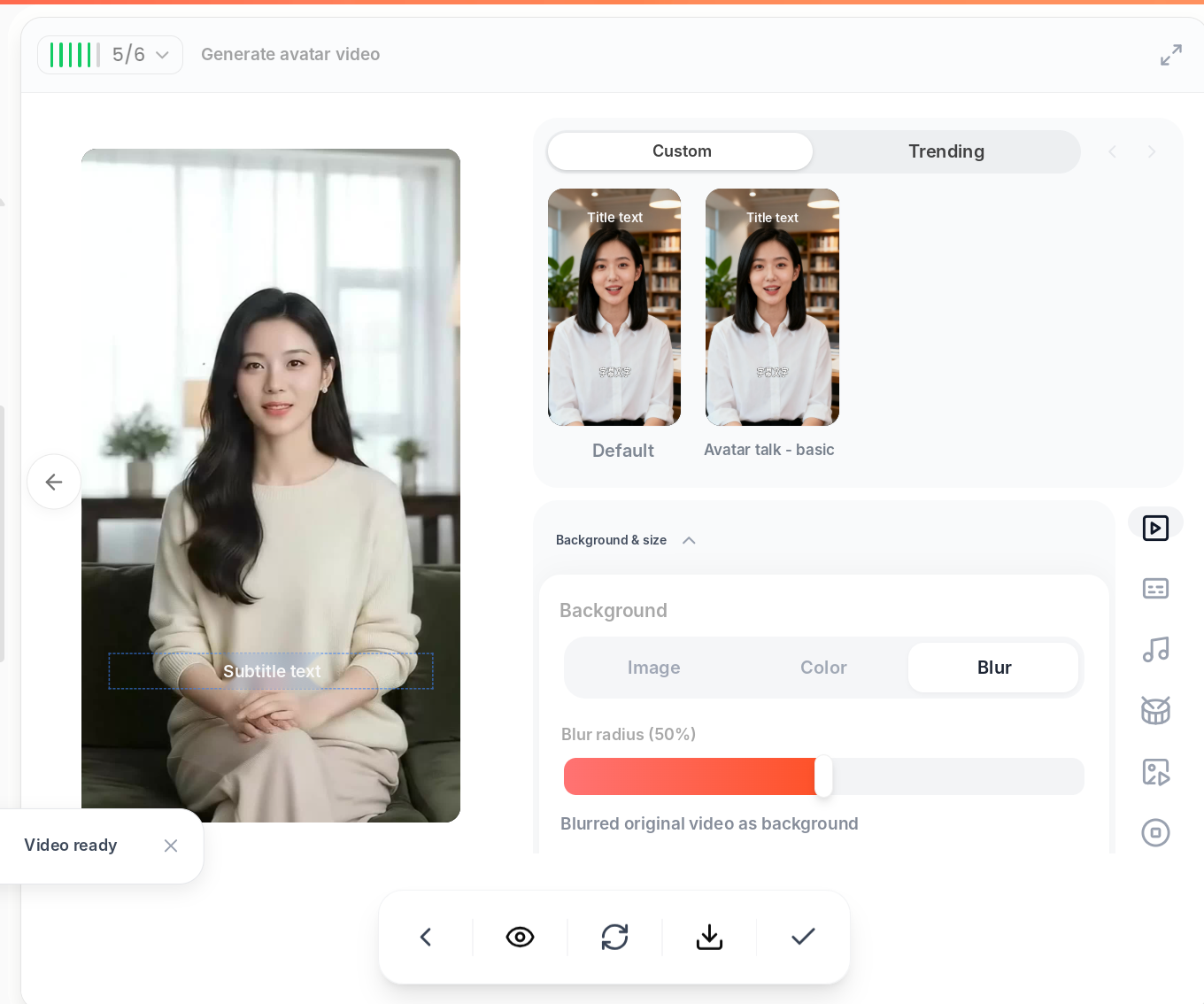
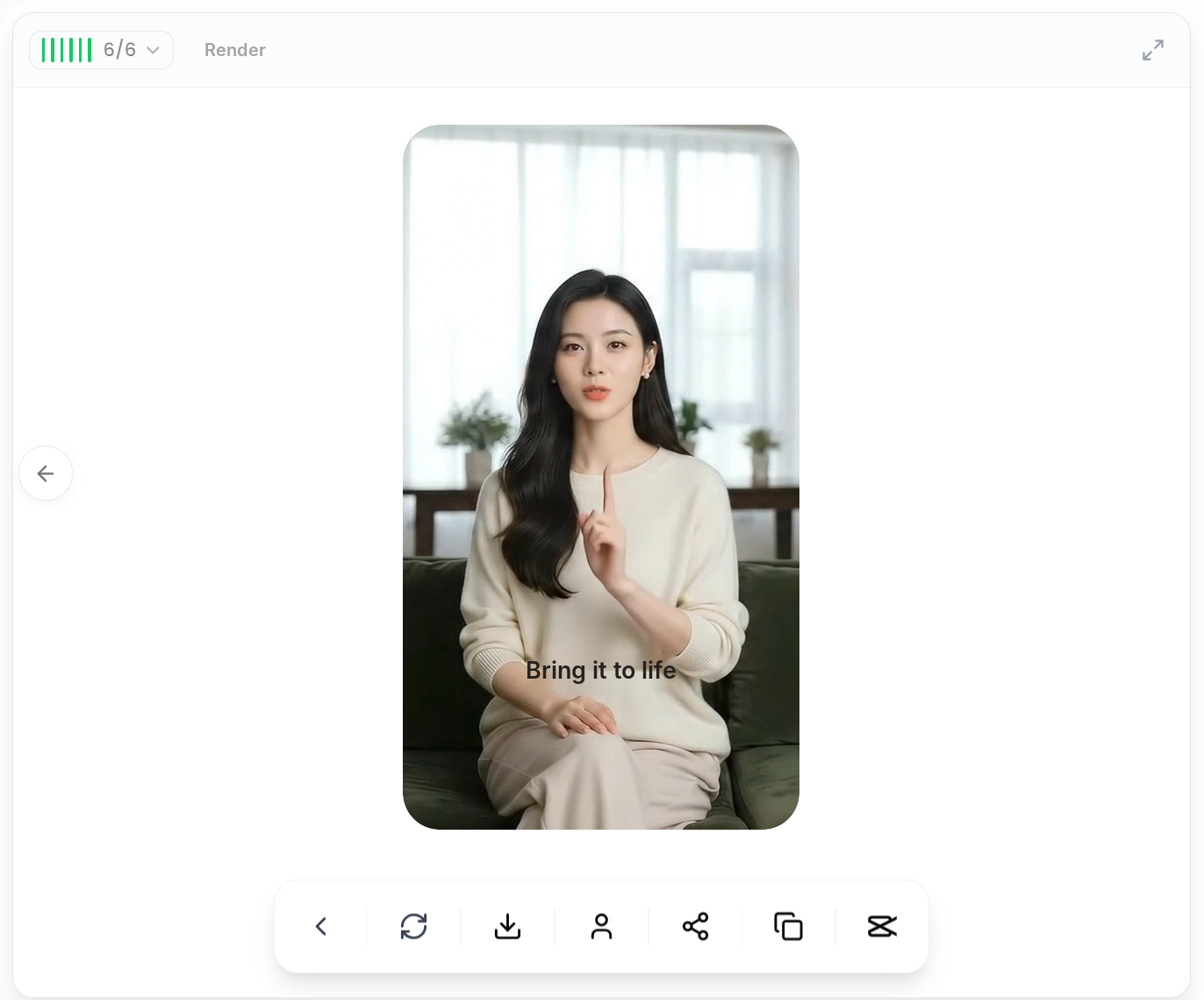
From my own use, this flow is especially handy for solo founders. Filming a talking video usually means setting up a space, getting in the right headspace and reshooting when the delivery feels off. With Vibbit, I pick the avatar, write the script, preview the voice and generate. The result looks smooth and natural, and it saves a lot of reshoots.
Results vary by avatar, script and assets, so watch the full video before you publish.
Who are AI avatar videos for?
They're best for people who need to publish often but don't want to film every time.
| Who | Example content | How the avatar helps |
|---|---|---|
| Solo founders | Product intros, how the business works, lessons learned | Post consistently without filming |
| Ecommerce sellers | Shopify product intros, Amazon product tips | Turn selling points into explainer videos |
| Creators | YouTube explainers, TikTok shorts | Script a topic, generate, post |
| Teachers | Course intros, concept explainers | Turn lesson notes into videos |
| Small teams | Brand intros, FAQs | Less need for on-camera staff |
An avatar doesn't have to replace everything. If a video needs a real product demo or live interaction, film it. A practical approach is to start with FAQs, tips and product intros, then build your workflow from there.
Tips for better AI avatar videos
- Write for the ear. Short sentences, one point per paragraph, and not too much jargon.
- Preview the audio first. Listen closely to brand names, product names and technical terms.
- Match your images to the topic. Product videos get product shots; lessons get images that support the explanation.
- Watch the whole video before you publish. Check the words, the visuals and the platform's requirements for YouTube, TikTok or Instagram.
- Follow the rules when cloning. Use the recommended setup when you record, wait for approval, and only upload footage of people who have given you permission.
FAQ
What is an AI avatar video generator?
It's a tool that makes talking videos with an AI presenter. You choose an avatar, add a script and generate the video. Vibbit handles the whole flow, so you don't have to be on camera each time.
Can I make YouTube or TikTok videos without showing my face?
Yes. Write scripts for tips, product intros or FAQs, generate them with an avatar in Vibbit, and check each video against the platform's requirements before posting.
Can I create an avatar that looks like me?
Yes. Upload a short video of yourself talking to the camera in Vibbit. Your voice is cloned from the same video. Once the avatar is approved, you can use it.
I don't have a script yet. Can I still make a video?
Yes. Use Write my script to get a draft, review it, preview the audio, then generate.
Is this a good fit for solo founders?
Yes, if you need to post regularly but don't want to spend time filming. Avatar selection, scripting, voice preview and generation all happen in one flow. Just review the result before you publish.
Make your first AI avatar video
You don't need a camera setup, lighting and five retakes to make a talking video. In Vibbit, pick an avatar, write or generate your script, preview the voice, add B-roll if you want, and generate.
Make your first AI avatar video on vibbit.ai.