How to Turn Product Photos Into an AI Product Video
Turn a product photo into an AI product video for TikTok, YouTube or Shopify: upload, describe the scene, generate. Real steps and tips from Vibbit.
Making a selling video from a single product photo comes down to three steps: upload the photo, describe the shot, and generate. That's an AI product video. I ran the whole thing in Vibbit, from a still photo to a video ready to post, with no filming and no editing software. Below are the steps I followed and the mistakes I learned from, for anyone posting on YouTube, TikTok or a Shopify store.
Step 1: Upload your product photos
Uploading is easy. The key is telling the AI which photo to use.
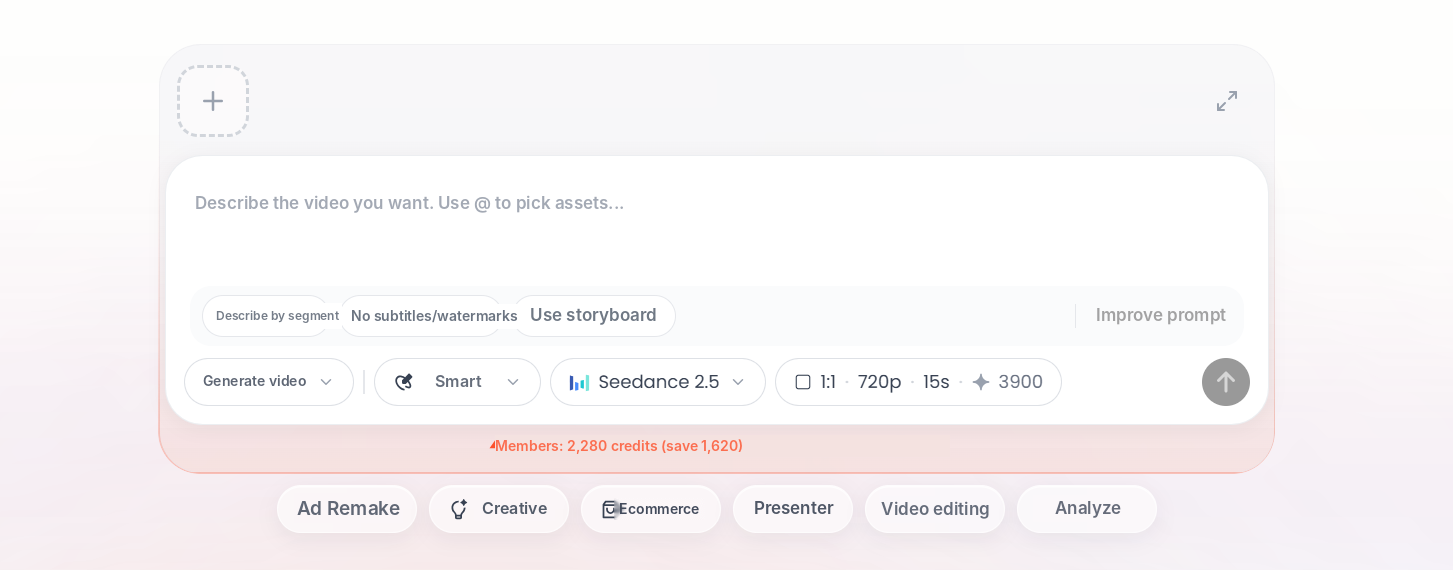
- In Vibbit, open Create and drag your product photos into the input box. You can upload several at once.
- Use clear photos with a clean background. If you want a specific photo in the video, tag it in your description with @.
My first upload was a mug on a white background. If you upload a mug and a coaster together, writing "@mug on a wooden table" makes sure the AI uses the mug photo instead of picking on its own. With multiple images, @ is what keeps the wrong asset out of your video and saves you a redo.
Step 2: Choose how the camera moves
Decide on the camera movement first, then on where the video will be used.
- Push in is great for single-product detail, like the glaze on a mug rim.
- Pan works for showing a set, like a mug with its coaster.
- Rotate shows 3D shape, like a bottle or a shoe.
For TikTok, I go with fast pacing. For a Shopify or Amazon product page, I use a steady push-in, which feels calmer and more premium. Match the camera move to the product and where it'll appear, not just to what looks cool.
Step 3: Write a description that doesn't look like a fake ad
Replace adjectives with a concrete scene, and the video instantly looks more real.
- Describe how the shot should look. Mine was: "Put this mug on a wooden table, morning light from the left, slow push in, hold 2 seconds at the end."
- Tag the photo with @ if you want a specific one.
- Click Generate video. If you don't like the result, change the description and try again.
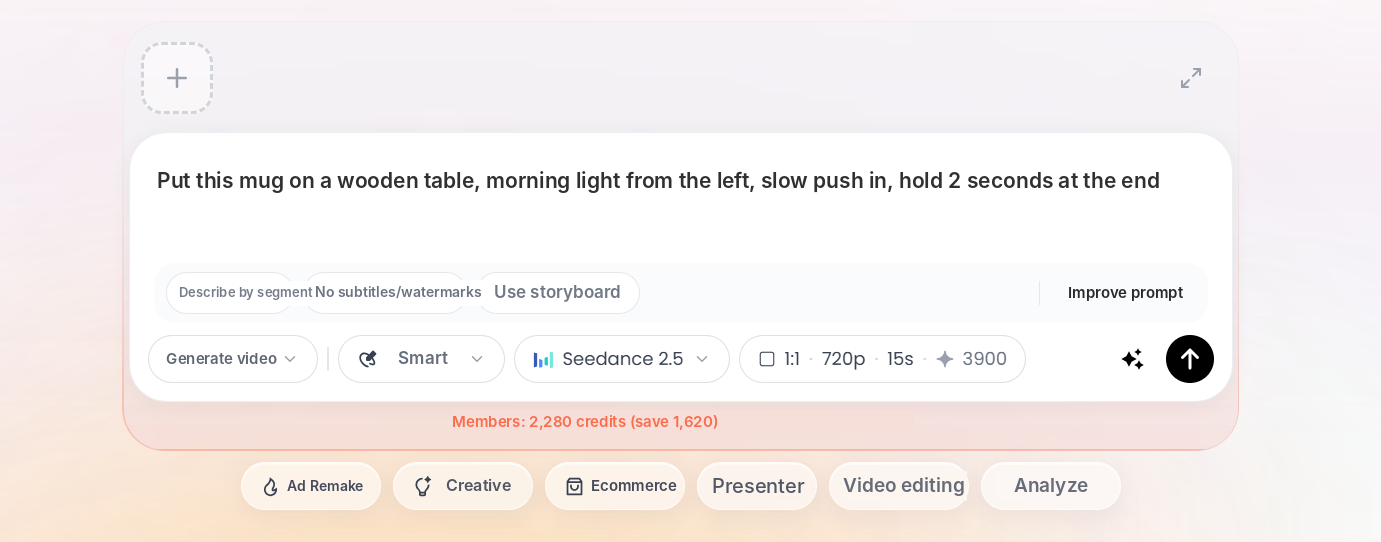
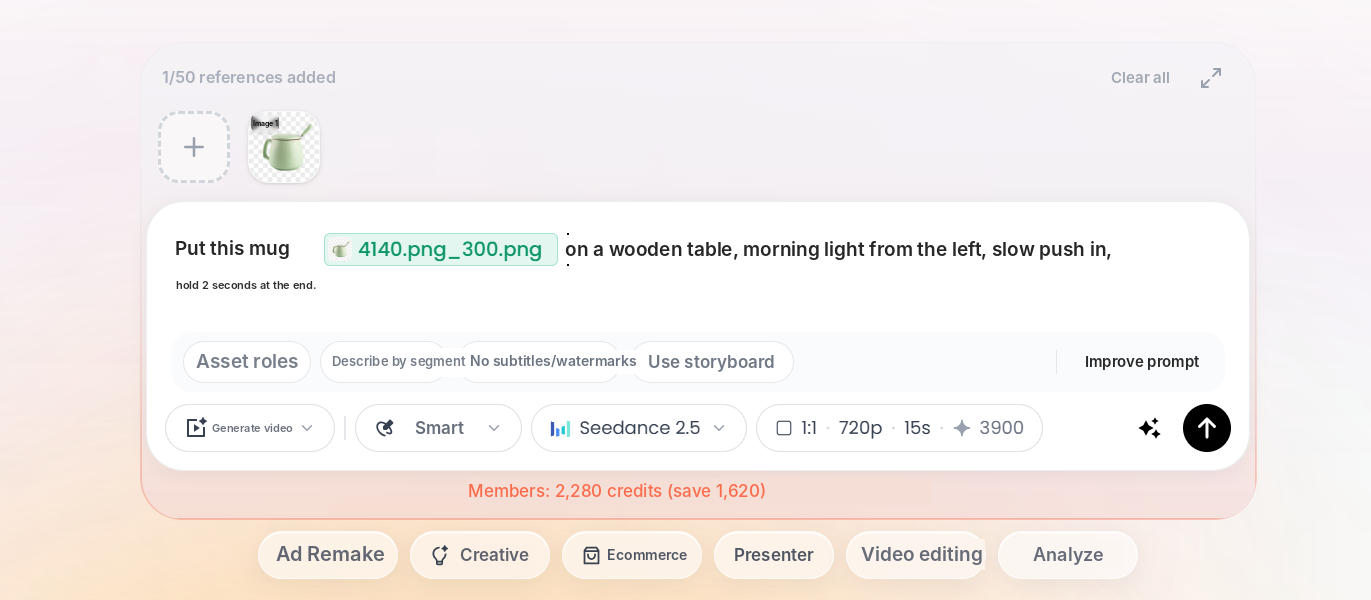
The description is where you should spend the most time. It's where you actually direct the shot. On my first try I wrote "bright lighting" and the video looked fake. When I changed it to "soft side light, natural window light," it looked far more natural. I also tested a skincare bottle: "bottle on a marble counter, a hand enters from the right and picks it up" looked much more real than "premium product video."
| How you write it | What you get |
|---|---|
| "A nice-looking product video" | Looks fake, and similar to everyone else's |
| "Mug on a wooden table, morning light from the left, slow push in" | Looks closer to real footage, steadier shot |
Why do some videos look fake, and what can I do?
It's not you. It happens. Sometimes no matter how many prompts you add, the result still looks artificial. Two things help: describe a more realistic use scene (instead of "premium," try "mug on a kitchen counter next to an open magazine"), and keep the camera move simple. AI video also has limits today. Not every product category can pass as real footage, and sometimes you'll still need some real shots to mix in.
Can I use the video on Shopify and Amazon?
Yes. You download a regular video file and can post it on TikTok, YouTube or Instagram, or add it to your Shopify or Amazon product page. Just make sure the aspect ratio fits the platform.
Tips
- Tag assets with @ so the video uses the photo you uploaded.
- A concrete scene beats adjectives. This is the change I make most often.
- Match the camera move to the use: fast pacing for social, a steady push-in for product pages.
- Try the same description with a different camera move. The results can differ a lot.
- A clear photo with a clean background helps more than fixing things with prompts later.
FAQ
Do I need editing skills?
No. Upload a photo, write a description, generate. There's no timeline or keyframes to deal with.
What does @ do in the description?
It tells Vibbit which uploaded image to use. If you upload a mug and a coaster and tag the mug, the video focuses on the mug.
I added lots of prompts and it still looks a bit fake. Why?
A concrete, realistic scene and a simpler camera move usually help, but AI video still has limits. For very realistic results, mix in some real footage.
Can I post the video directly to TikTok, YouTube or my product page?
Yes. Download the file and upload it wherever you need. Check the aspect ratio first.
How many product photos can I upload?
Several at once. When you upload more than one, tag the one this video should use with @.
Try it
Start with one product photo and make your first AI product video in Vibbit: vibbit.ai