How to Translate a Video to Brazilian Portuguese
Translate any video into Brazilian Portuguese with cloned voice, lip sync and clean subtitles. Four steps inside Vibbit, no editor or voice actor needed.
To translate a video to Portuguese for a Brazilian audience, you need four steps in Vibbit: upload the video, pick Brazilian Portuguese as the target language, turn on voice cloning and lip sync, then export. Vibbit runs speech recognition, voice separation, translation, dubbing, subtitles and lip sync inside one job, and gives you back a finished video with Brazilian Portuguese audio and subtitles. You can read the translation line by line before anything is generated, and the video, the audio track and the SRT file download separately.
The flow is the same whether you run a YouTube channel, post short videos to TikTok and Instagram, or make product videos for Shopify and Amazon listings.
How do you translate a video to Brazilian Portuguese? All four steps
All four happen inside a single “New video translation job,” so you never export a file into another tool and back.
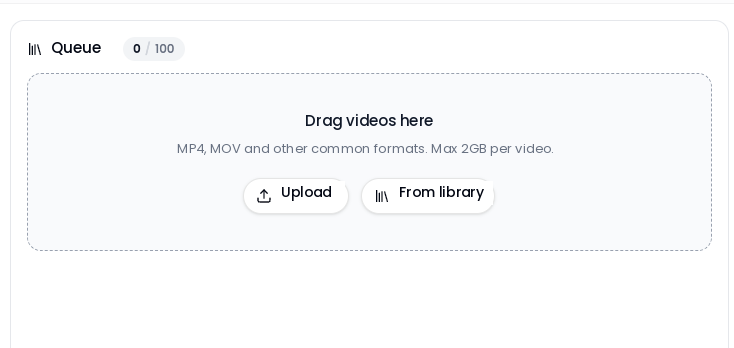
1. Drag your video into the queue, or click Upload video / Choose from library.
The panel supports MP4, MOV and the other common formats. One video can be up to 2GB and 30 minutes long, and the queue holds up to 100 clips. The batch I ran had three clips in it — 0:25, 0:20 and 0:25, at 10.9 MB, 10.9 MB and 6.1 MB.
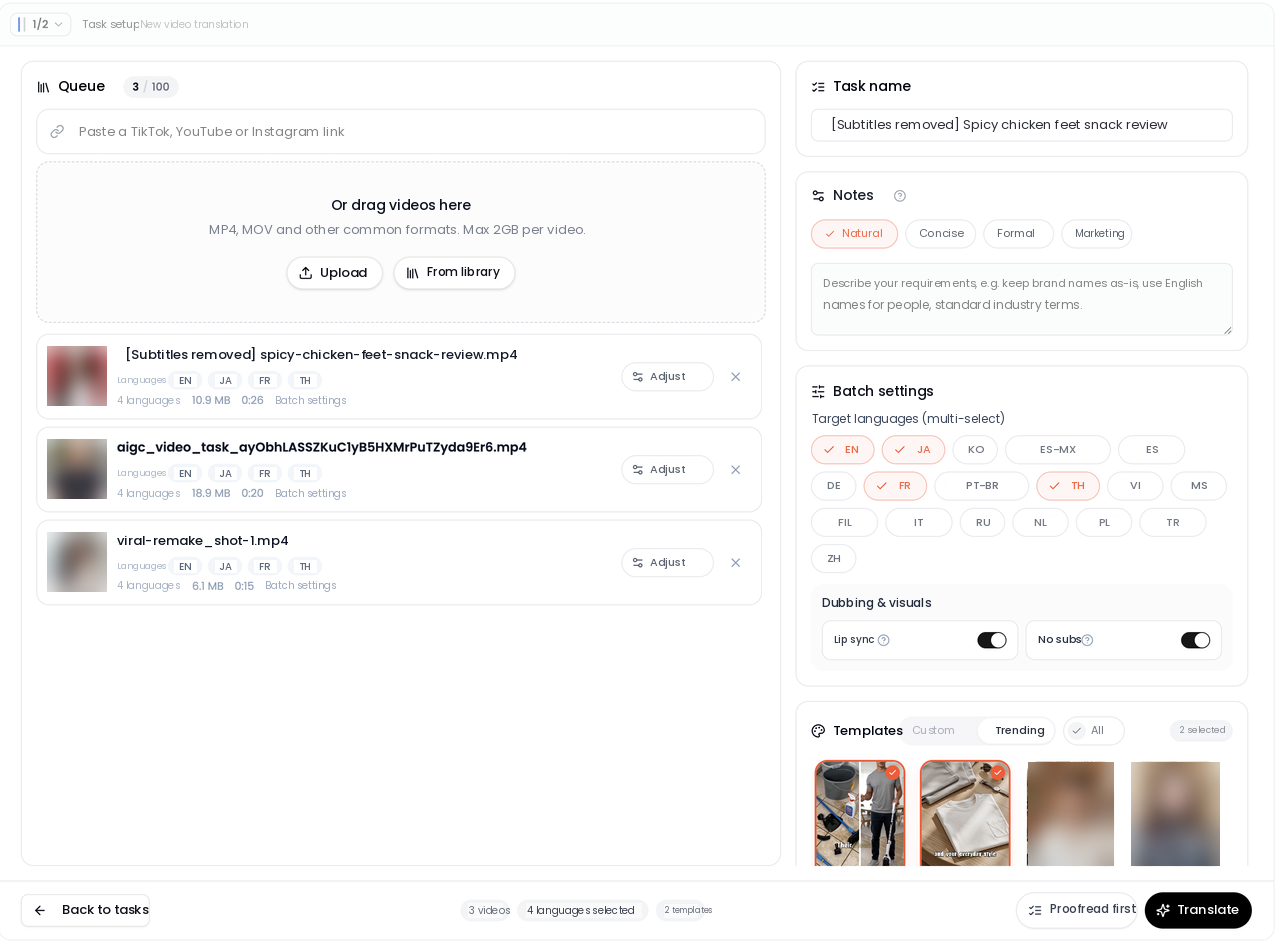
2. Under Batch translation settings → Target language, check Brazilian Portuguese.
You can select several languages at once; the same screen lists English, Japanese, Korean, Spanish, German, French, Thai, Vietnamese and more. My job had four languages checked. Under Translation style you can choose natural spoken, concise subtitle, formal, or marketing tone, and the box underneath takes free-text instructions like “keep the brand name in English, use the same spelling for people’s names throughout, translate technical terms the way the industry does.”
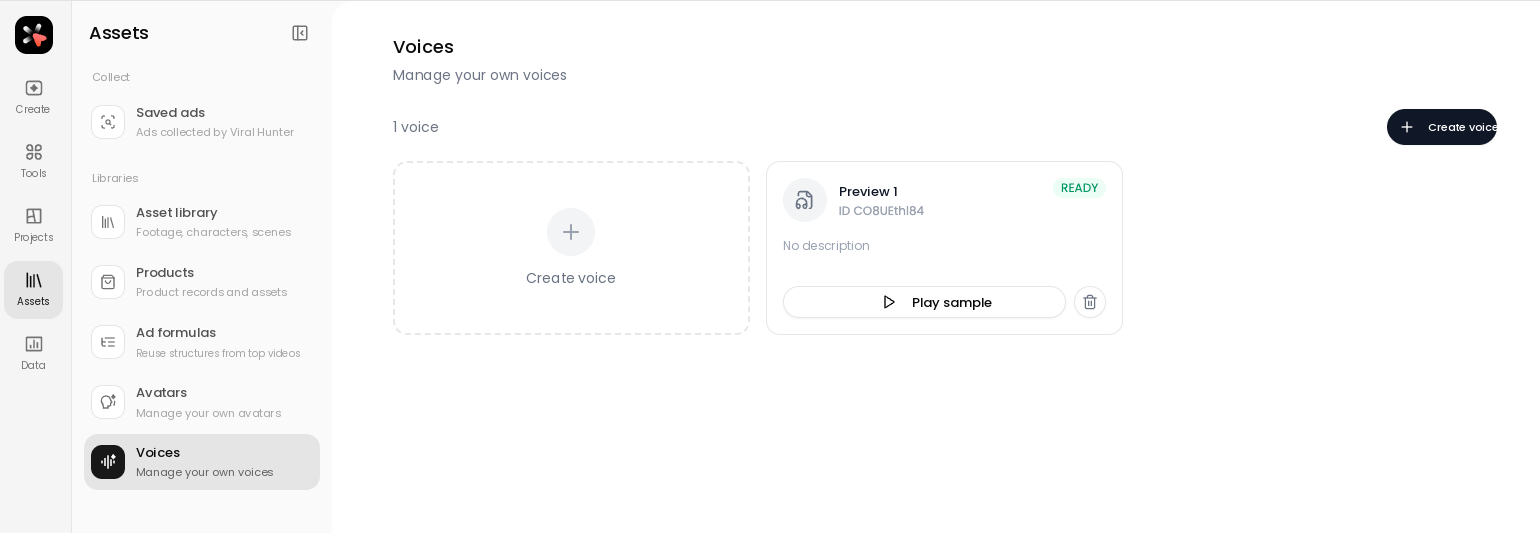
3. Turn on voice cloning and lip sync. The cloned voice is created on the Voices page; lip sync is a separate switch under Dubbing & visual settings.
The Voices page is where you manage your own voices — there’s a Create voice button and a Preview button on each one, and a cloned voice shows as READY once it’s processed. Under Dubbing & visual settings, Lip sync and Remove subtitles are two independent switches you turn on as needed.
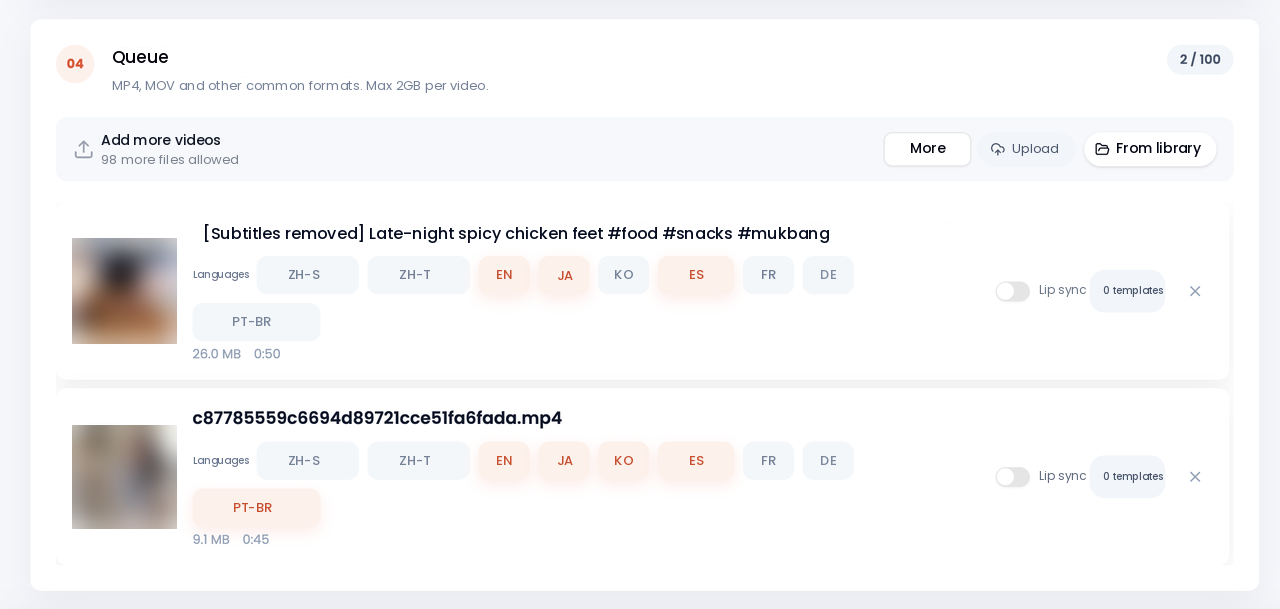
Before you generate, the queue screen gives you one more chance to check: each clip shows its target languages, with Portuguese (Brazil) selected, and the Lip sync switch sits on the right.
4. Click Proofread first or Fully automatic, then download by language from the results page.
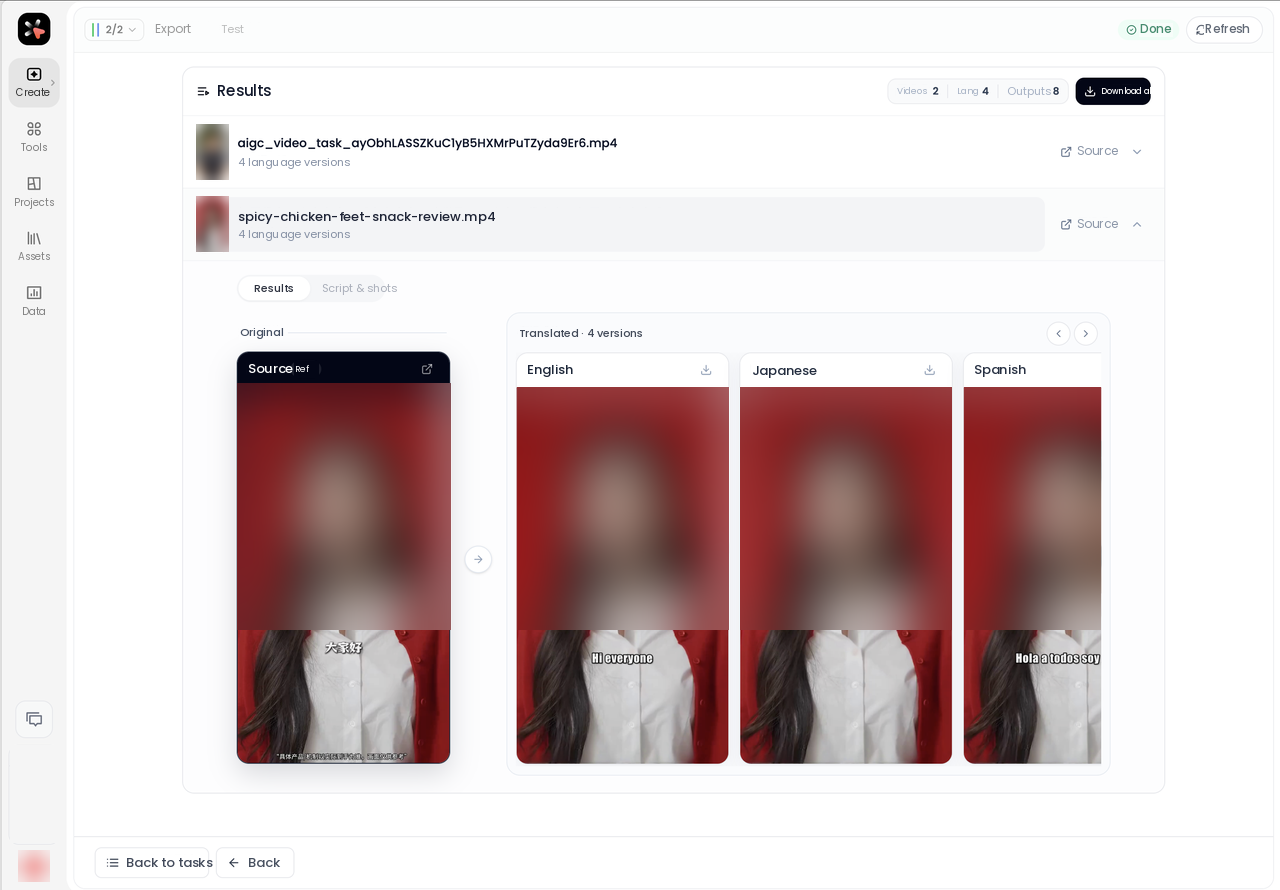
The results page header shows the count — source videos, languages, finished videos — with Batch download in the top right. The Compare with original view puts the source video next to each translated version, and every card has its own download button. Finished videos come in two flavours, with burned-in subtitles and without, and the video, audio and subtitle files all download separately.
Before and after: what actually changes?
Three things change: the original subtitles are gone, new subtitles appear in the target language, and the speaker’s mouth follows the new audio.
In the pair I kept from my own test, the left frame is the Chinese original with a subtitle across the middle of the screen. The right frame is the same moment after subtitle removal, lip sync on the opening shot, and translation — the old subtitle is gone and a new headline reads “No more skinny feet! Look how meaty!”, with the speaker’s mouth matching the new voice track.


One note: that example targeted English. For Brazilian Portuguese the process is identical — you just check Brazilian Portuguese in step 2 instead.
Should voice cloning and lip sync both be on?
Turn both on when someone is on camera speaking to you. If the clip is voice-over or product close-ups, leave lip sync off.
Lip sync in Vibbit works at the segment level: you can proofread before generating, switch lip sync and voice on or off, and re-do a single line you aren’t happy with instead of regenerating the whole video.
Voice cloning is a separate path. You create the voice on the Voices page, preview it immediately, and Vibbit can clone several different speakers in one video or swap a speaker’s voice for another one.
Setting | Where it lives | What it does | When to use it |
|---|---|---|---|
Lip sync | Dubbing & visual settings | Segment-level lip sync, switchable before generating, editable per line | Someone is on camera speaking |
Remove subtitles | Dubbing & visual settings | Automatically erases burned-in subtitles and watermark text | The source has hardcoded subtitles |
Voice cloning | Voices page | Clone your own voice, preview it, swap speaker voices | You want to keep your own voice |
You see the estimated cost before you commit: it’s calculated from length, how many target languages you picked, and whether lip sync is on, and the page shows it before you hit Generate.
Three things to do before you export
Proofread first, check the specs, and download the right file for each channel — that removes most of the rework.
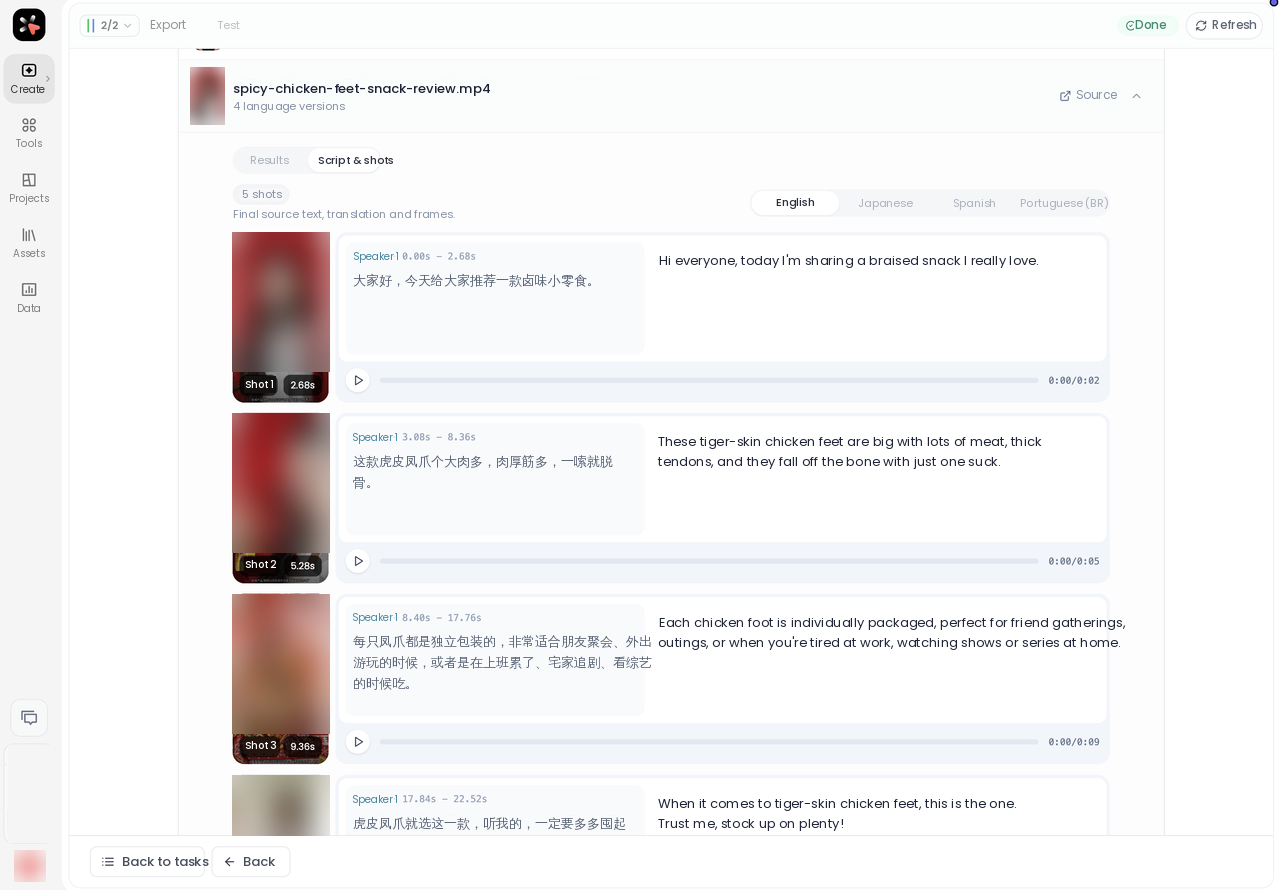
First, proofread before you generate. The Script & storyboard page has a tab per language — English, Japanese, Spanish, Brazilian Portuguese — and lists every line with its timecode, speaker number, source text and translation, with an audio player under each one. If a line is wrong, you fix that line by its timecode and leave the rest alone.
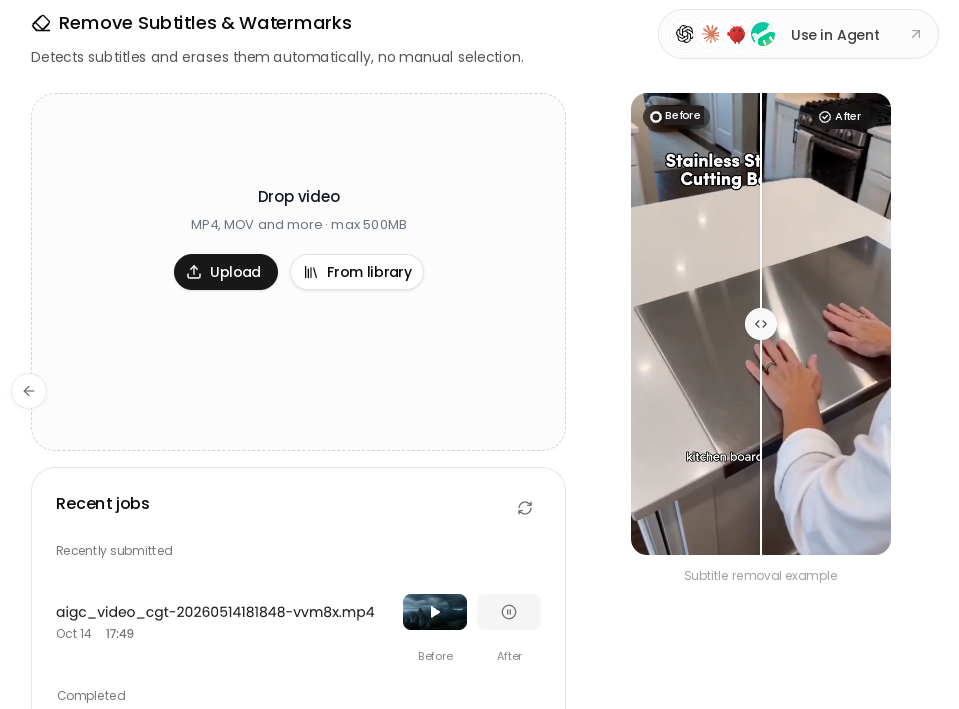
Second, clear the burned-in subtitles properly. The Remove subtitles & watermark page has a before/after slider so you can confirm the frame is clean before moving on. If the old subtitle isn’t fully erased, the new one stacks on top of it.
Third, take the file that matches where you’re publishing. Vibbit gives you subtitled and subtitle-free versions of the finished video, plus the SRT and the audio track on their own.
Where you’re publishing | What to download | Why |
|---|---|---|
YouTube long-form / courses | Subtitled video + SRT | The SRT lets you keep correcting after upload |
TikTok / Instagram Reels | Subtitle-free video | So you can add captions in the platform’s own style |
Shopify / Amazon product video | Subtitle-free video + audio | Separate audio makes it easy to swap the voice track later |
Further editing | Video, audio and subtitles as three files | They download separately, so any editor can pick them up |
Specs worth knowing up front: one video up to 2GB and 30 minutes, up to 100 videos per batch job. Lip sync costs a bit more in credits than dubbing alone, and the page shows the estimate before you generate.
FAQ
When I translate a video to Portuguese, does the on-screen text get translated too?
Yes. Vibbit detects where the original subtitles sit, aligns the new ones to the same place, and translates on-screen headlines along with the audio, so the voice and the text on screen are localized together. It also improves where subtitle lines break, so they read naturally rather than cutting mid-phrase.
Which option in the language list is Brazilian Portuguese?
On the setup page the multi-select list calls it Brazilian Portuguese; in the video queue the same language shows as Portuguese (Brazil). They’re the same option. Vibbit has localized pronunciation built in for 30+ target languages and adapts wording to local usage, so pick that one rather than European Portuguese when your audience is in Brazil.
Can I download the video, the subtitles and the audio separately?
Yes. Finished videos come with and without burned-in subtitles, and the video, audio and subtitle files download individually. You can also download the translated SRT after proofreading without rendering the video at all. The results page also has a Batch download for multi-language jobs.
How long can one video be, and does lip sync cost extra?
One video can be up to 2GB and 30 minutes, and a batch job holds up to 100 of them. Lip sync is billed in credits and costs more than dubbing alone; the estimate for the job appears before you generate.
If one line is wrong, do I have to redo the whole video?
No. You locate the line by its timecode on the finished video, edit the translation, re-record just that line and adjust the segment — lip sync included — then submit it for regeneration. Everything else stays as it was.
Want your own video in Brazilian Portuguese? Upload a clip to Vibbit and see how the finished version comes out.