How to translate a video to Arabic
Upload, pick Arabic, check the subtitles and brand names, export. Here’s the full walkthrough of translating a video to Arabic in Vibbit.
The fastest way to translate a video to Arabic is Vibbit’s video translation: upload the video, select Arabic, and the system handles voice separation, translation, dubbing and subtitles. You check the subtitles and the brand names, then export. Here’s the whole thing as I actually ran it.
What I did and what I found
I tested Vibbit’s video translation with a product explainer about 40 seconds long. After uploading, I could check Arabic right in the interface — along with other languages if I wanted them in the same job — and toggle Remove subtitles and Lip sync. When the system finished it handed me a subtitle draft with source and translation side by side. I focused on whether the brand name had been mangled, confirmed it, clicked download, and had the finished video with Arabic dubbing and subtitles. The whole flow is: upload → pick Arabic → check subtitles and brand names → export. No editing on my part.
Vibbit’s video translation is built for multi-language output: 30+ target languages with localized pronunciation built in, and translations adapted to local wording and phrasing so the dub sits closer to how people there actually speak. After uploading, the system extracts the speech, separates voice from background, removes the original subtitles, translates and proofs, generates subtitles and dubbing, applies segment lip sync and composites the video. Finished videos download with or without burned-in subtitles, and the SRT downloads on its own for further polishing. During translation you can add context like your channel name and product details to keep brand names consistent throughout.
The four steps
Step 1: Upload your video
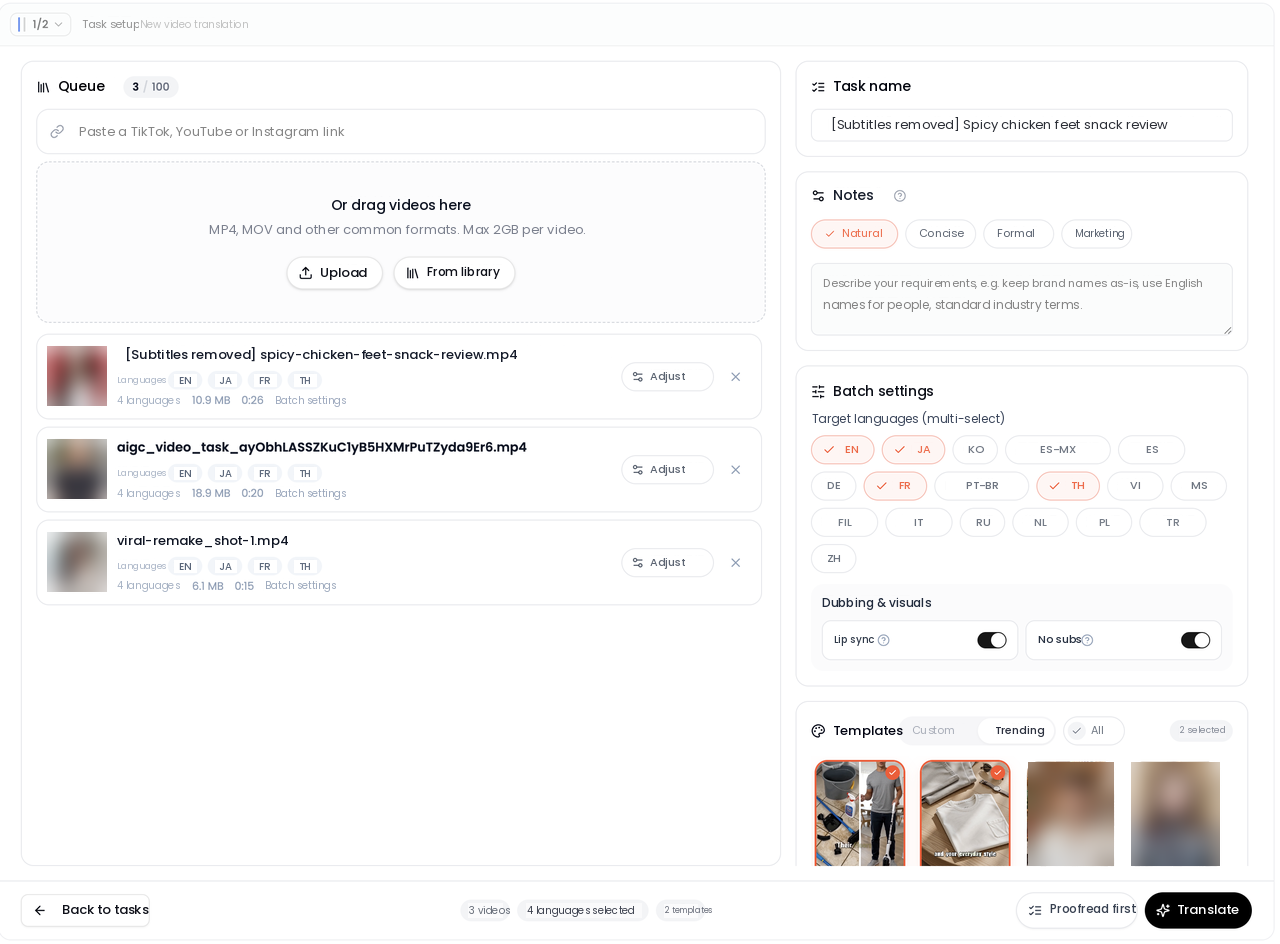
Open video translation, start a new job, and drag the file in — or use Upload video or Choose from library. Vibbit takes MP4, MOV and the other common formats, with a single video up to 2GB and 30 minutes. For a first run, cut a 30–60 second section and test-translate that; once the translation and the pronunciation look right, do the full video.
Step 2: Select Arabic and set the Middle East market
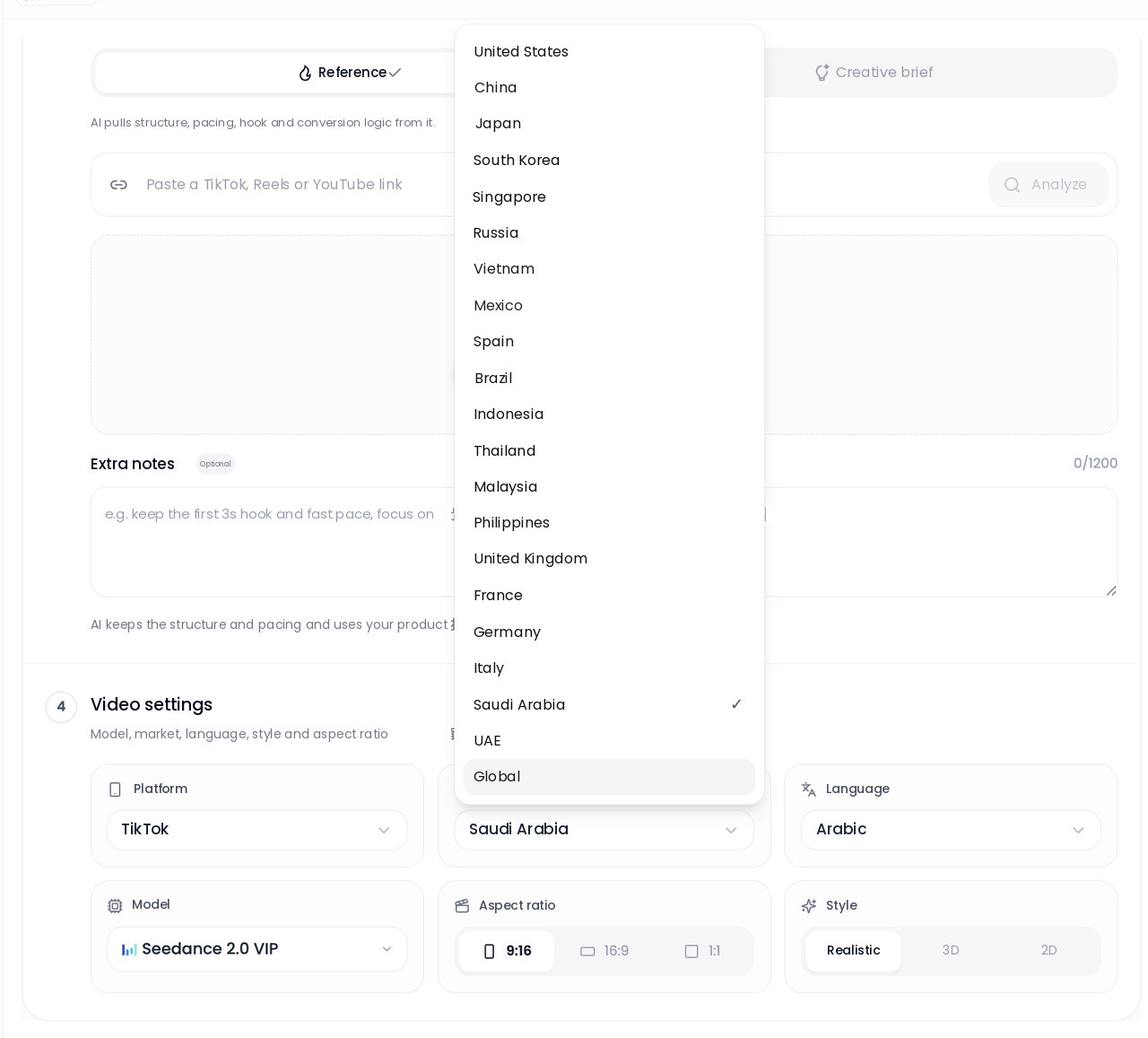
Check Arabic in the target languages. If the video is for viewers in Saudi Arabia, the UAE or elsewhere in the region, set the publishing market to match. Vibbit has localized pronunciation built in for each target language, and the Arabic is adapted to local wording so you avoid the stiff translated-sounding read. If you want the speaker’s mouth to match, turn on Lip sync; if the source has burned-in subtitles, turn on Remove subtitles.
Step 3: Check the subtitles and the brand names
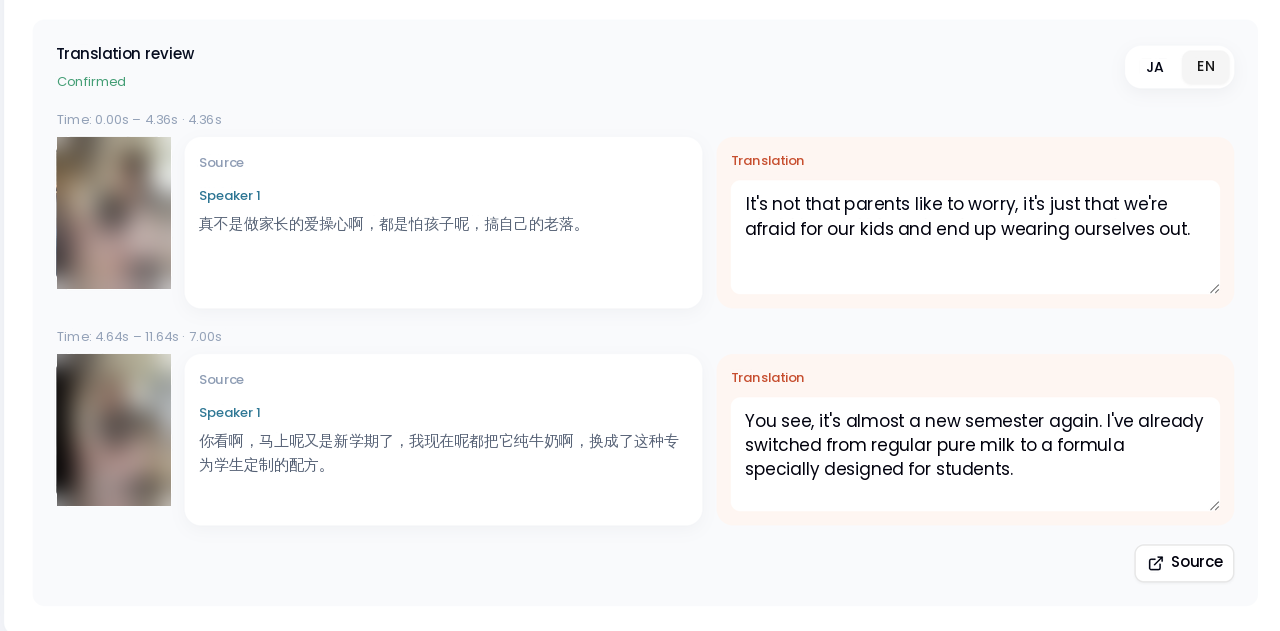
When the translation finishes, Vibbit gives you a subtitle draft with source and translation side by side, and this step decides the quality of the final video. Read the translation through, paying attention to whether the brand name, the channel name and the product name have been paraphrased or mistranslated — proper nouns are where things go wrong most often. You can add brand names and product details to the translation context to keep the wording consistent, and if one line is wrong, locate it by its timecode, edit just that line and re-record it. The rest stays as it was.
Step 4: Export
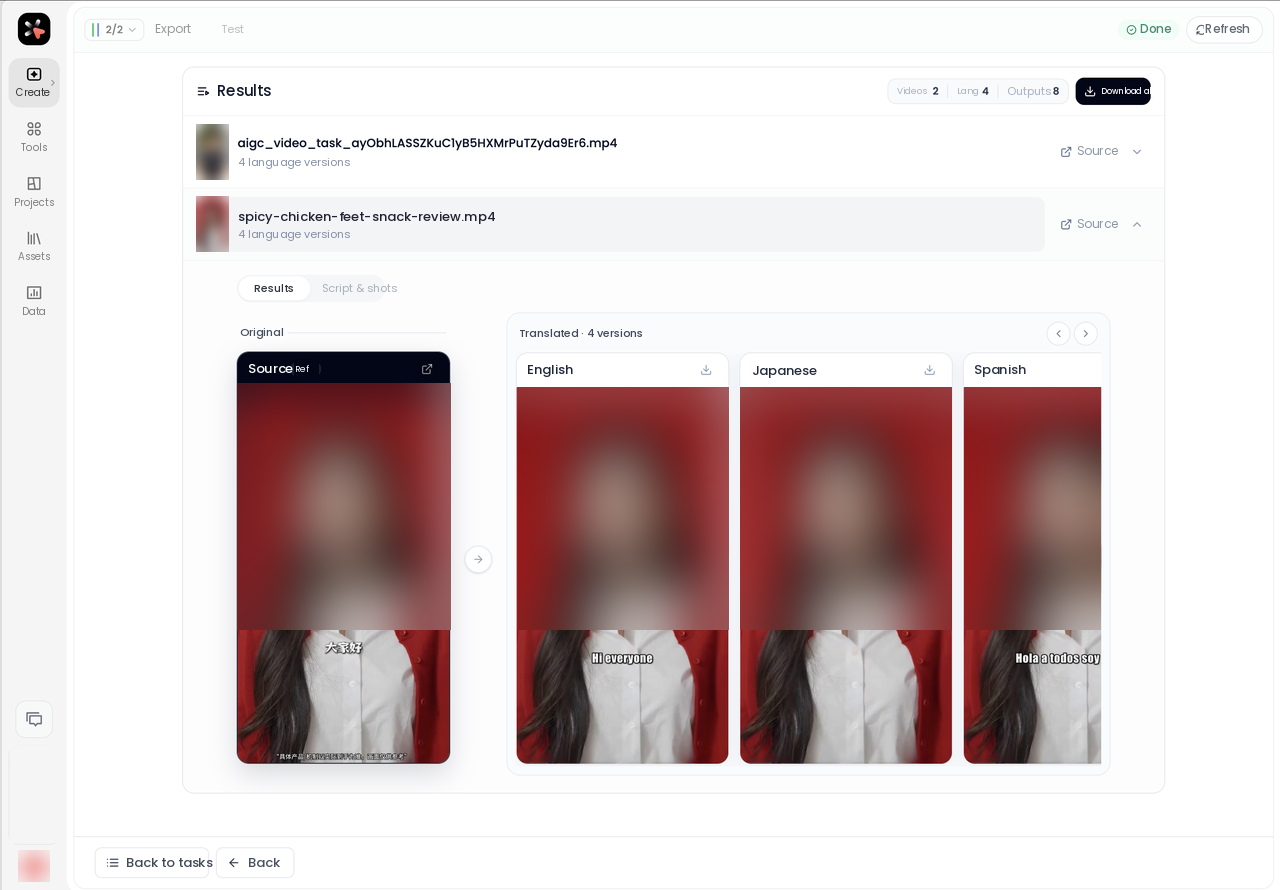
Once the subtitles are clean, download. Vibbit offers the finished video with and without burned-in subtitles, and exports the SRT separately so you can keep adjusting in an editor. One job can produce several language versions at once, each with its own download button, or take the lot with Batch download.
Tips
Run a short clip through first. Take 30–60 seconds, confirm the Arabic translation and pronunciation are right, then do the full video.
Subtitles before dubbing is safer. Vibbit lets you download the SRT and proof it before deciding whether to render the dub, which saves you redoing things.
Put brand names in the context field. Adding your brand name, channel name and product details to the translation context noticeably reduces mistranslated proper nouns.
Fix locally, don’t redo. If one line of translation or dubbing isn’t right, find it by its timecode, change just that line and re-record it.
Which output should you take?
Output | Best for | How to get it |
|---|---|---|
Video with subtitles | Posting straight to YouTube, TikTok, Instagram | Download from the results page |
Video without subtitles | Adding your own captions and overlays later | Download from the results page |
SRT subtitles | Further polishing in an editor | Export separately |
FAQ
Which regional accents does Arabic translation support?
Vibbit has localized pronunciation built in for 30+ target languages, and the Arabic translation is adapted to local wording and phrasing to sit closer to viewers in the region. Selectable Middle East markets include Saudi Arabia and the UAE.
Does the translation keep the original background music?
Yes. Video translation separates voice from background first, keeps the original music, then layers the Arabic dub and subtitles on top. The picture isn’t affected.
If a subtitle or a brand name is wrong, can I fix it?
Yes. Add brand names and product details to the translation context, or locate a specific line by its timecode, edit the translation and re-record just that line.
Does the exported video have subtitles?
Either way. Vibbit offers the finished video with and without burned-in subtitles, and exports the SRT separately for adjusting in an editor.
How long can one video be?
One video can be up to 2GB and 30 minutes, and a batch job holds up to 100. For a first run, cut it short and test-translate before doing the full video.
Want your video in Arabic for viewers in the Middle East? Run one through Vibbit.