How to use an AI video translator: translation, dubbing and lip sync in one pass
Translate, dub and lip-sync a video in one place with Vibbit’s AI video translator. Here’s every setting, walked through step by step.
With Vibbit’s AI video translator you translate a video, dub it in another language and sync the lips in a single pass — no bouncing between a translation tool, an editor and a lip-sync app. I ran a video through the whole translation flow in Vibbit; upload, language selection and final download all happen on the same page. Here’s what each setting does.
Who is an AI video translator actually for?
If you need your video understood by people who speak another language, this removes three separate costs: a translator, a recording session and lip-sync software.
Teachers making YouTube tutorials, creators posting short videos to TikTok and Instagram, sellers listing on Amazon and Shopify — they all hit the same wall. One good video only reaches people who speak one language. Vibbit’s AI video translator puts translation, dubbing and lip sync into one flow, so a single video comes out in several languages.
How much difference does the translation actually make?
After translating, the video has a foreign-language voice track, lips aligned to the new pronunciation, and the original subtitles removed. Here’s the before and after.
Before | After translating in Vibbit | |
|---|---|---|
Language | One, the original | 30+ target languages to choose from |
Subtitles | Original-language burned-in text | Original subtitles erased; translated SRT available |
Voice | Original-language audio | Cloned original voice, or a choice of voices |
Lips | Original pronunciation | Segment lip sync, mouth aligned to the new language |
How to use it: three steps to translate, dub and lip-sync
Three steps, following the actual flow in Vibbit.
- Upload the video, pick your target language from the list, and turn on Remove original subtitles.
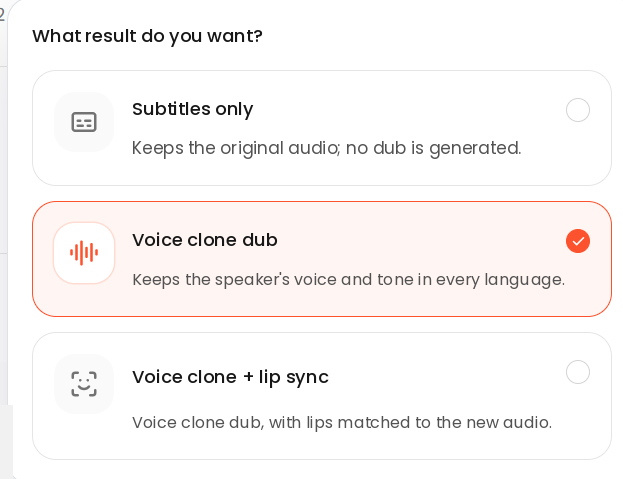
- Turn on Voice cloning to dub in the original speaker’s voice, and Lip sync so the mouth follows the new language.
- Fill in Translation instructions with your terminology and proper nouns, hit Generate, and when it’s done download the video, the audio and the subtitles separately.
Here’s each of the five key settings in turn:
Language selection. Vibbit offers 30+ target languages, each with localized pronunciation built in. A batch job can target several languages at once and handle up to 100 videos in one task.
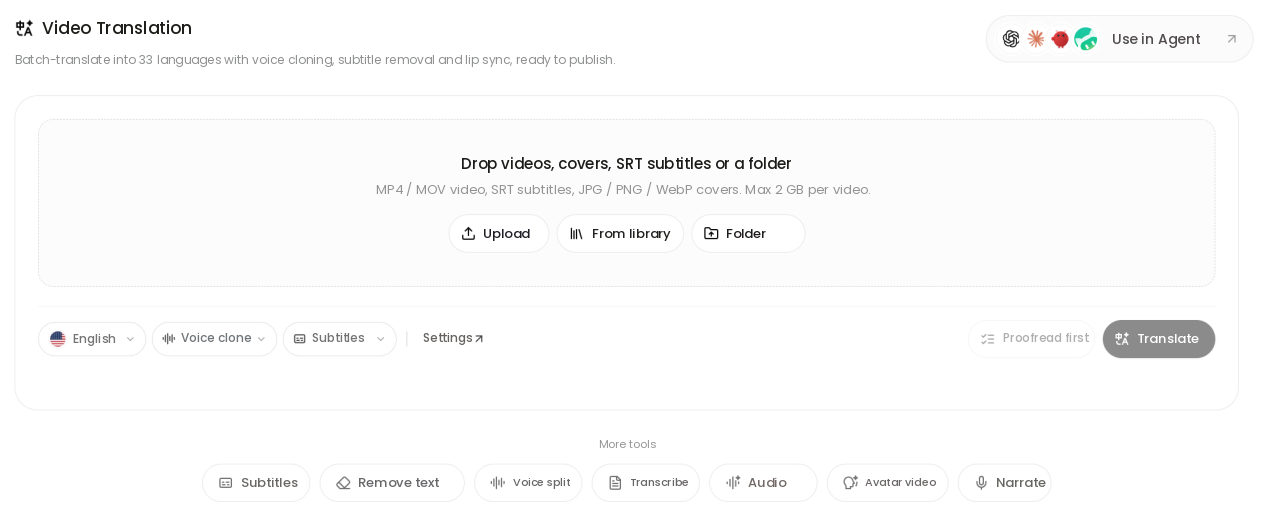
Voice cloning. With cloning on, Vibbit clones the speaker’s voice and has them speak the new language, rather than swapping in a stranger’s voice.
Lip sync. Turn this on at generation and the mouth in frame aligns to the new pronunciation, so you avoid the mismatch of a changed voice over an unchanged mouth.
Remove original subtitles. With this on, Vibbit erases the burned-in subtitles and keeps the frame intact; you can then download the finished video with and without subtitles.
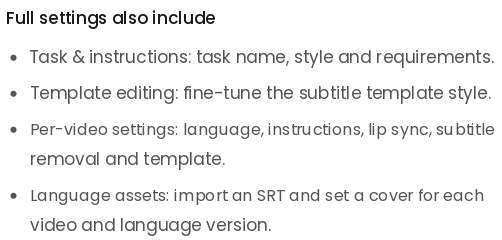
Translation instructions (terminology). Add people’s names, your channel name, course terms and product details here, and Vibbit keeps the wording consistent throughout, which cuts down on mistranslations.
Which languages and voice options are supported?
30+ target languages with localized pronunciation built in, dubbed either with a cloned voice or a preset one. Coverage includes American English, British English, Finnish, Norwegian, Swedish, Indonesian, Romanian and more, with smaller languages being added over time. On the voice side, you can clone the original speaker, or assign a different voice to each speaker so a multi-shot video stays consistent.
Who gets the most out of an AI video translator?
Three groups: teachers, content creators, and sellers who ship to several countries.
Teachers translate one course into several languages and reach students who speak Spanish and Portuguese.
Creators take one video that worked and publish it to YouTube, TikTok and Instagram in different markets.
Sellers localize product videos for their Amazon and Shopify storefronts, using local accent and wording to close the distance.
FAQ
Does removing the subtitles hurt the picture quality?
Not noticeably. Vibbit erases the original subtitles and keeps the frame; you can download the finished video with and without subtitles and pick whichever you prefer.
How many videos can one job hold?
One video can be up to 2GB and 30 minutes, and a single batch job handles up to 100 videos. Billing is in credits, and the page shows the estimated cost for the job before you hit Generate.
Can I translate just the subtitles and skip the dub for now?
Yes. Vibbit lets you download the translated SRT, so you can proofread first and come back for dubbing and rendering when you’re ready.
Can one pass cover several languages?
Yes. A batch job takes several target languages at once and handles up to 100 videos per task, which suits localizing a whole set of content in one go.
What if a term or a proper noun comes out wrong?
Add it to Translation instructions and Vibbit keeps it consistent throughout. After generating, you can also locate any line by its timecode, edit that one translation and re-record just that sentence.
Try the AI video translator in Vibbit and put one of your videos into several languages.