How to translate an SRT file into multiple languages
Already have subtitles? Upload the SRT to Vibbit, pick your target languages and download a subtitle file for each one. Folders supported.
If you already have a video’s SRT subtitle file and want it in English, Spanish, Portuguese or another language, use Vibbit’s subtitle translation. Upload the SRT, pick your target languages, download a subtitle file for each one.
This suits creators, sellers and teachers who have already made the subtitles and now want viewers in other countries to follow the video. YouTube videos, TikTok content, Instagram videos, online courses — as long as the matching SRT exists, subtitle translation gets you the multi-language versions.
Below: how to translate an SRT file in Vibbit, and what to watch when you’re handling a lot of them at once.
What is an SRT file, and why translate the subtitles?
SRT is a common subtitle format. Each entry carries a number, the timing, and the text. It records when each line appears and what the viewer should read.
The SRT for an English video holds the English dialogue. To make that video understandable to Spanish or Portuguese viewers, you translate the existing subtitles rather than rebuilding the whole subtitle track from scratch.
For a video that already has subtitles, translating the SRT is usually easier than making a new set.
Where this comes up:
- YouTube creators — translating the subtitles on existing videos so viewers in other regions can follow.
- TikTok and Instagram creators — preparing multi-language subtitles for short videos that already have captions.
- E-commerce sellers — translating subtitles for product explainers, how-to videos and product demos.
- Online educators — preparing subtitle files in other languages for course videos.
One thing to be clear about: SRT subtitle translation works on the subtitle file itself. If you already have the video and its SRT, you can start straight from subtitle translation; there’s no need to recreate the original subtitles.
How do you translate an SRT file in Vibbit?
Three steps: upload the SRT, choose the target languages, download the translated subtitle files.
Step 1: Upload the SRT file, or a folder
Open Vibbit’s subtitle translation and drag the SRT files into the upload area.
Vibbit takes the SRT format and also accepts a dragged folder. When you drop a folder in, the system reads the subtitle files inside it and in its subfolders.
If you only need one video’s subtitles translated, upload that SRT. If you’ve got subtitles for a lot of videos, organize them into folders and upload the folder.
For example, if you’ve made a run of videos for a YouTube channel and each has its own SRT, group the subtitle files by content and drag the folder in.
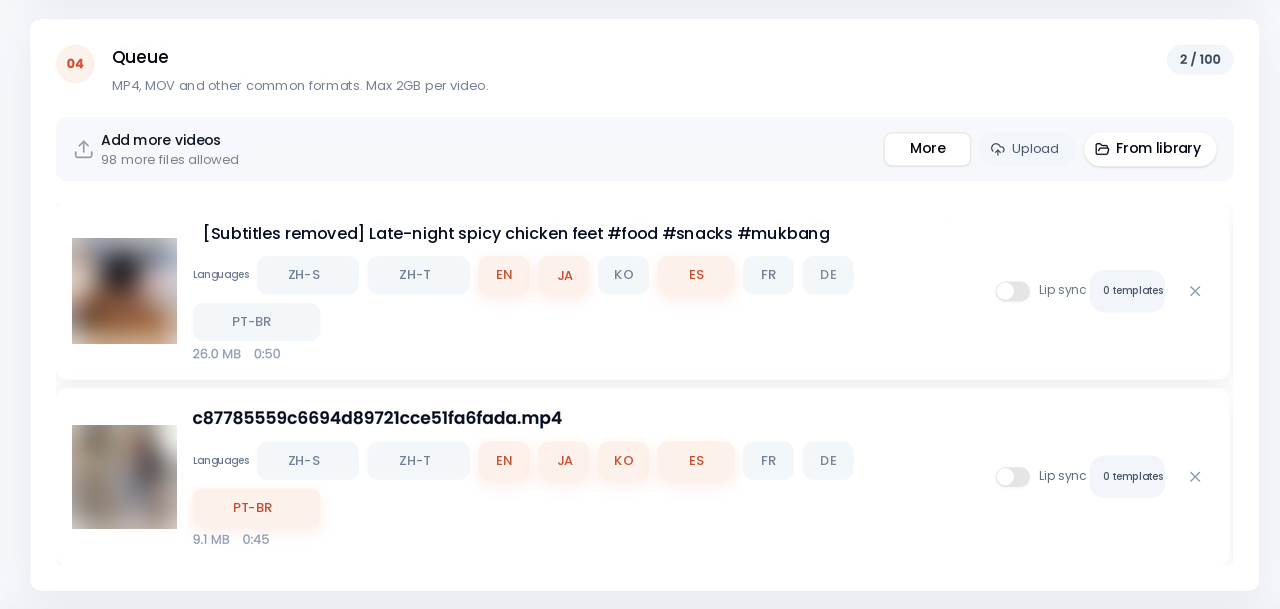
Before uploading, confirm the files really are SRT and that you’ve selected the right ones. That avoids upload errors and missing files.
Step 2: Pick the target languages
With the subtitle files uploaded, choose the languages you need.
If your video is going to audiences in different languages, select the ones that match where you’re publishing. One English subtitle file can produce a Spanish and a Portuguese version for different regions.
When choosing, start from who actually watches the video rather than selecting everything available.
- English YouTube content: add Spanish or Portuguese subtitles depending on your audience.
- Product explainers: prepare subtitles in the language your target customers use.
- Online courses: prepare subtitle versions for learners from different language backgrounds.
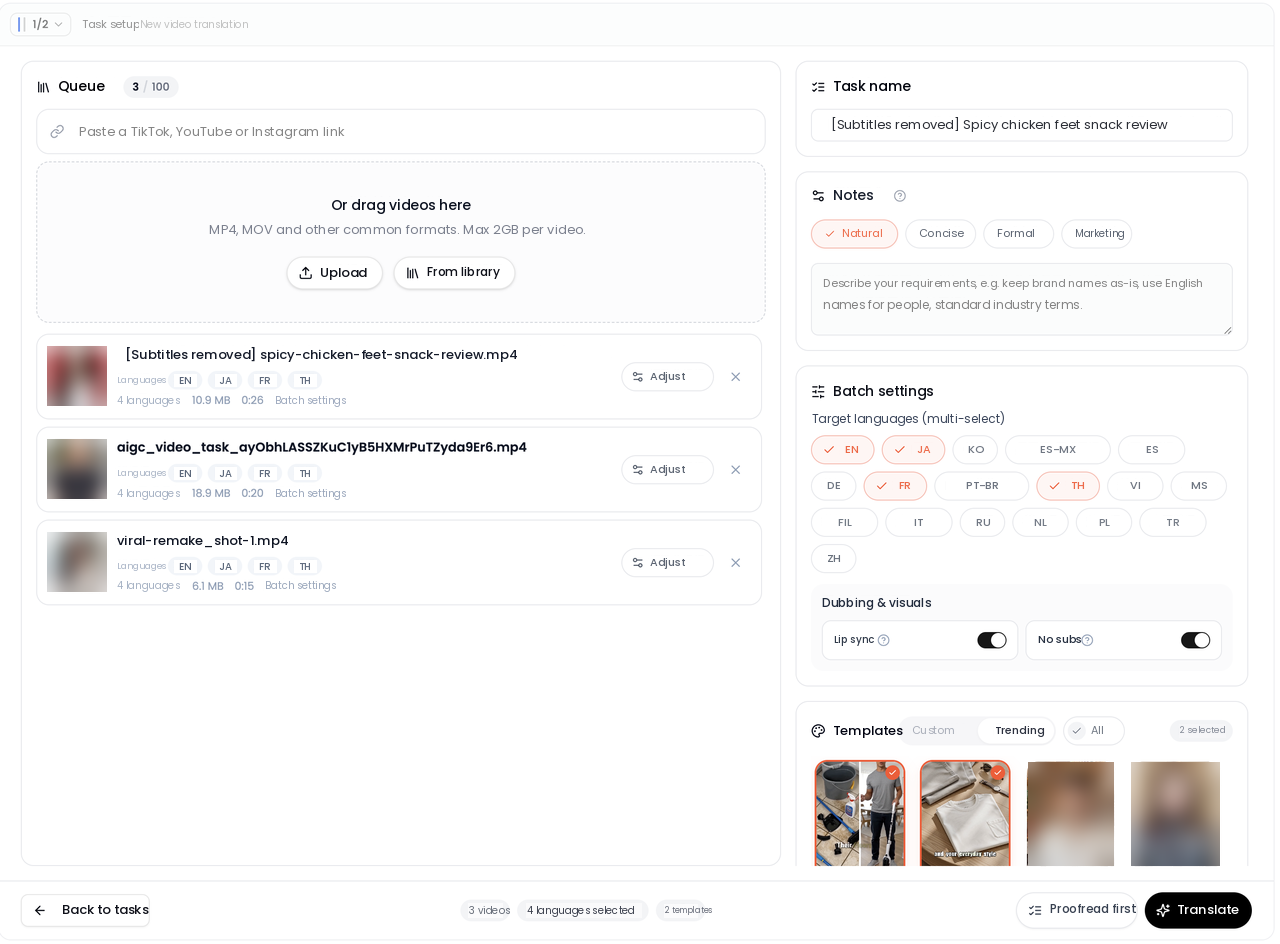
Once selected, follow the prompts to process the files. One source subtitle file produces every language version — you don’t re-upload and reorganize the source for each language.
Step 3: Download the translated SRT files
Once the languages are chosen and the translation is done, download the subtitle files.
After downloading, organize them by language and source video name so the versions don’t get mixed up. The subtitles for one video might be saved as separate English, Spanish and Portuguese files.
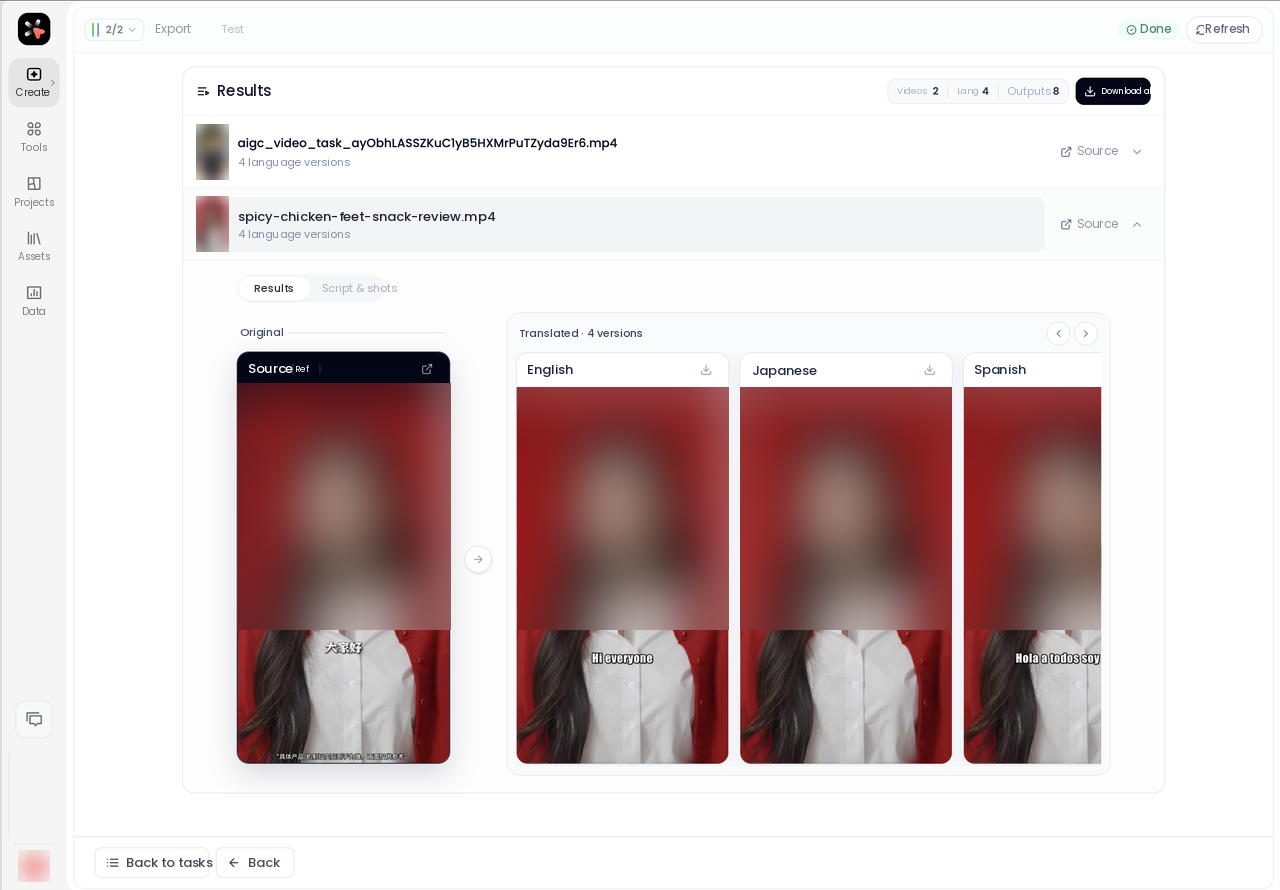
Then check the files saved properly and that each one is in the language you expect. When you need them later, you pick the SRT that matches the video version you’re publishing.
If you’re running content across YouTube, TikTok and Instagram at the same time, building folders by video name and language makes the files much easier to find later.
What to watch when translating SRT files
The important things are: the right source file, the right target languages, and a check of the content after downloading.
- Check the file format before uploading. Vibbit’s subtitle translation takes SRT. Confirm the file type first so you don’t upload a video file, a document or another format by mistake.
- Organize multiple subtitle files in advance. Since Vibbit reads subtitles inside folders and subfolders, sorting them by video name or content first makes the translated output much easier to manage.
- Choose target languages based on real audience. If your content is mainly for English, Spanish or Portuguese viewers, make those versions first. The target languages should match where you publish and who watches.
- Check the subtitle content after downloading. Focus on product names, brand names, technical terms and figures. If the subtitles cover product specs, course material or procedural steps, confirm the translated meaning matches the source.
- Keep the original SRT. Don’t overwrite it. Save the source and each translated version separately, so you can find the original when you need to revise or retranslate.
FAQ about SRT subtitle translation
I don’t have the video, only the SRT. Can I still translate?
Yes. Vibbit’s subtitle translation takes SRT subtitle files directly, so if you already have the subtitles, you don’t need to upload the source video just to translate them.
Which subtitle formats does Vibbit support?
Based on the current feature set, Vibbit’s subtitle translation supports SRT. If you’re working in another subtitle format, check the upload requirements first.
Can I process several SRT files at once?
Yes — drag a folder in. Vibbit reads the subtitles inside the folder and its subfolders, which suits anyone who’s already organized a set of subtitle files.
Can one SRT be translated into several languages?
Yes. Upload the source SRT and select as many target languages as you need to prepare each version, which suits creators and sellers serving audiences in different languages.
Does translating the SRT change the video picture?
No. SRT subtitle translation works on the subtitle file; it doesn’t modify the video itself. Once you download the translated subtitles, you use them according to how you produce and publish your video.
If you already have an SRT but need subtitle versions for viewers in other languages, Vibbit’s subtitle translation handles it directly. The flow is simple: upload the SRT or the folder, select the target languages, download the translated files. For YouTube videos, social short video, product explainers and online courses that already have subtitles, it’s a convenient way to handle multi-language captions.
Open Vibbit, upload one SRT file, and prepare another language version of your video.