Making videos in bulk from your AI assistant: installing the Vibbit Skill
Connect Claude Code, Codex, WorkBuddy or OpenClaw to Vibbit. Copy one install command, link your account, then make videos by describing them.
If you want to produce videos in bulk through an AI assistant, install the Vibbit Skill so an AI agent like Claude Code, Codex or WorkBuddy can connect to your Vibbit account. Installation is a matter of sending one instruction to the assistant, following its prompts to link your Vibbit account, and — once verified — describing what you want made in plain conversation.
The Vibbit Skill suits creators, e-commerce sellers and marketers who’d rather let an AI video agent handle the setup. Instead of opening the tool and configuring each job by hand, you describe the video you want to the assistant and the connected Vibbit does the work.
Below: what the Vibbit Skill is, and how to choose your agent, install the skill, connect your account and start making videos.
What is an AI video agent, and what does the Vibbit Skill do?
An AI video agent is an assistant that understands what you want in natural language and uses the right tools to carry it out. Installing a skill gives the agent the ability to call a particular tool or service.
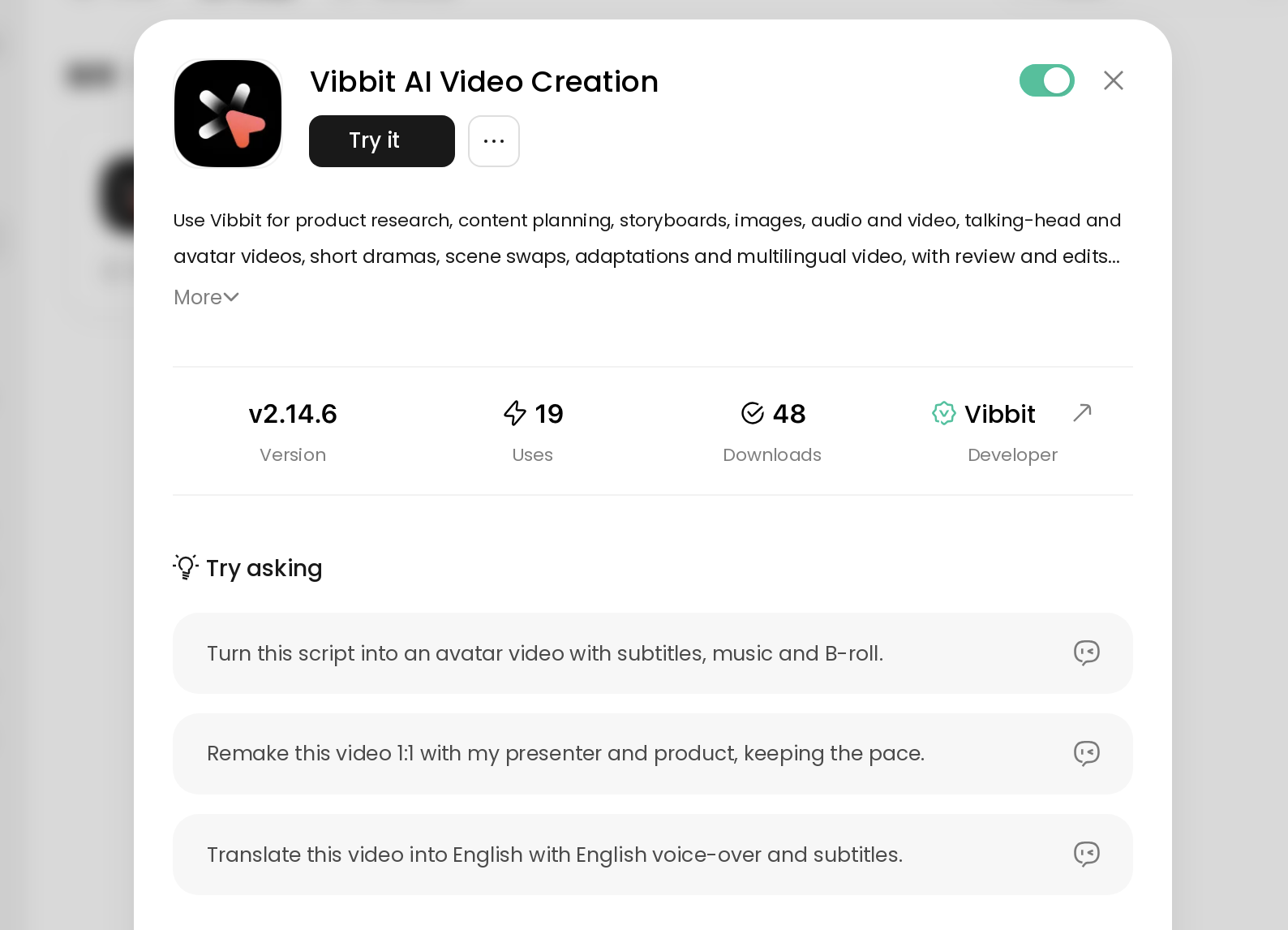
The Vibbit Skill’s job is to let a supported AI agent connect to Vibbit, so you can start video jobs through conversation.
If you sell on Shopify or Amazon and need explainers for a range of products, you describe the product and the video you want to the assistant, and the connected Vibbit handles the creation. YouTube, TikTok and Instagram creators can put video requests to the assistant the same way.
Before you start, you need an AI agent that supports skills, and a Vibbit account to connect it to.
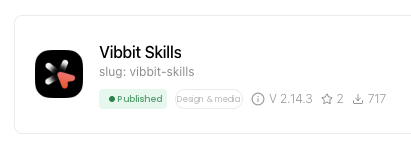
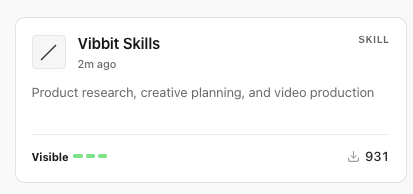
How do you install the Vibbit Skill?
Three steps: pick your AI agent, send the install instruction, connect and verify your Vibbit account.
Step 1: Pick the agent you’re already using
Confirm which AI agent you’re using and select the matching platform. Vibbit currently lists:
- WorkBuddy
- Codex
- Claude Code
- OpenClaw
- Other agents
You don’t need to switch assistants to install the Vibbit Skill — just pick the one you already use.
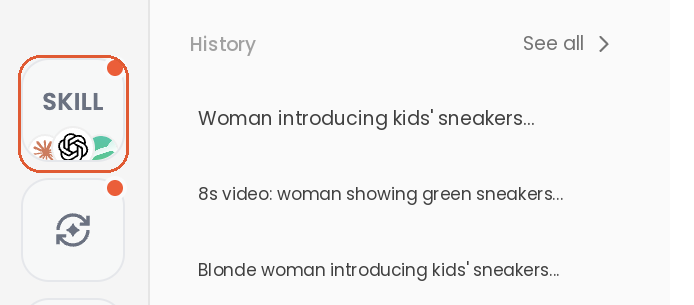
Step 2: Copy the install instruction and let your assistant run it
You don’t configure the install command by hand. Copy the instruction from the page into your agent’s conversation.
Taking WorkBuddy as the example: open the Vibbit Skill install page, find the matching instructions and copy this:
Please install or update Vibbit by running: npx -y vibbit-ai/skills install, then configure my Vibbit account using https://app.vibbit.ai/api-keys. Walk me through connecting it, and once it’s verified we can carry on creating.
Send that to WorkBuddy and follow the agent’s prompts through the install.
npx -y vibbit-ai/skills install is the command that installs or updates the Vibbit Skill. Once sent, the assistant runs the install and then walks you through configuring your account.
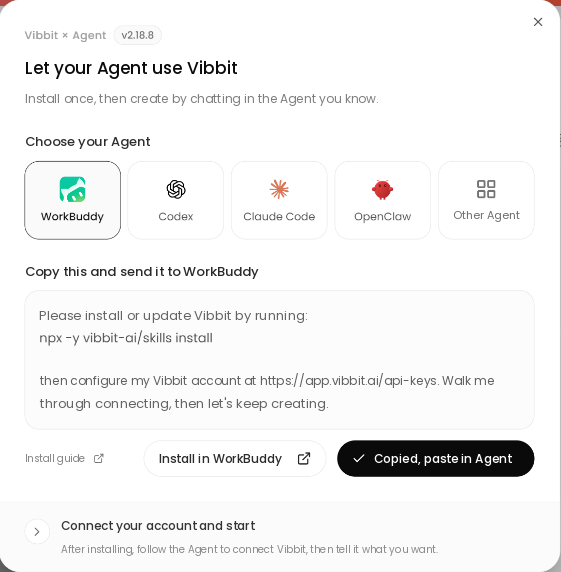
Note that different agents have different entry points. Send the install instruction to the conversation or command area that matches the platform you’re on, and don’t modify the command.
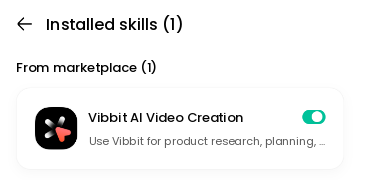
Step 3: Connect your Vibbit account and verify
Once installed, you still have to connect the agent to your Vibbit account.
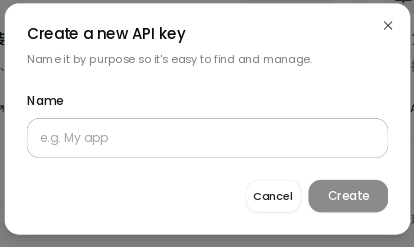
Follow the agent’s prompt to the account configuration page: https://app.vibbit.ai/api-keys
Complete the connection following the page and the agent’s guidance. After configuring, wait for the agent to verify the connection. Once it passes, you can start creation jobs through conversation.
With the connection made, you describe the video you want directly to the assistant rather than going back through setup each time. For example:
- Make a product explainer video for this item.
- Using these product assets, prepare several videos in different styles.
- Make a video for my TikTok product content.
- Based on this product information, plan out a set of videos.
When describing what you want, give the product details, what the video is for, who it’s aimed at and what you want it to show. The clearer the request, the better the assistant understands the job.
Things to watch when using the Vibbit Skill
Installing is not the same as configuring the account. A few points to keep the connection working:
- Confirm you picked the right agent. Before installing, check whether you’re on WorkBuddy, Codex, Claude Code or something else, and send the install instruction through the matching entry point.
- Don’t modify the install command. It has to stay complete: npx -y vibbit-ai/skills install. Dropping part of it when copying can break the install.
- Follow the prompts through account connection. Installing the skill and connecting your Vibbit account are two different steps. After installing, configure the account as prompted and wait for verification.
- Keep your account credentials safe. Configure your Vibbit account by following the official page. Don’t send your API key to anyone, and don’t show a complete key in public content.
- Give the assistant a clear brief. Once connected, describe what you need in conversation. Be specific about the product type, what the video is for, what it should contain and what assets exist, rather than giving a broad instruction.
FAQ
Which AI agents does the Vibbit Skill support?
Currently WorkBuddy, Codex, Claude Code, OpenClaw and other agents. Use the install entry point that matches the platform you’re on.
Do I have to run the command manually?
No. Copy the install instruction Vibbit provides, send it to your AI agent, and let it run the command. Follow the agent’s prompts through the rest.
Why do I still have to connect my Vibbit account after installing?
Installing the skill gives the agent the ability to use Vibbit; the account connection configures your own Vibbit account. Complete the connection as prompted and wait for verification before you start creating.
How do I make videos through the assistant once it’s installed?
With the skill installed and the account connected, describe what you want in the agent’s conversation — the product type, what the video is for, what it should show — and follow the conversation from there.
Can different agents use the same install command?
Vibbit’s install instructions include the command npx -y vibbit-ai/skills install. When using a different agent, follow the instructions for that agent on Vibbit’s install page.
The Vibbit Skill connects an AI agent to Vibbit so you can start video jobs by talking. Installation has three parts: pick your agent (WorkBuddy, Codex, Claude Code and so on), copy the install instruction and run it, then connect your Vibbit account and verify. After that, you describe what you want in conversation.
If you’d like an AI assistant to organize your video work, open Vibbit, install the Skill and make your first video.