How to Remove a Logo or Text From Your Own Video in 3 Steps
Remove a logo, text or burned-in subtitles from your own video in 3 steps. Vibbit detects and removes them automatically, no manual masking.
If you need to remove a logo from video footage you own, or clear out subtitles and text you no longer want, Vibbit's Remove Subtitles & Watermarks tool does it for you. Upload a video you have the right to edit, and Vibbit detects the on-screen subtitles and removes them automatically. No drawing boxes, no complicated editing.
It takes three steps: upload, let it process, then check and download.
Why remove text and logos from your video?
Old captions and marks get in the way when you reuse a clip for a new platform or purpose. Common cases:
Social media creators turning older videos into Instagram Reels or TikToks who want the original captions gone first.
YouTube creators reworking their own past uploads for a new edit.
Ecommerce sellers on Shopify or Amazon tidying up their own product videos so old text doesn't cover the product.
Online teachers reusing their course videos with new subtitles or in another language.
If you only need a few lines of text gone, there's no reason to edit frame by frame. An AI tool that finds the text for you is much faster.
How to remove a logo from video with Vibbit
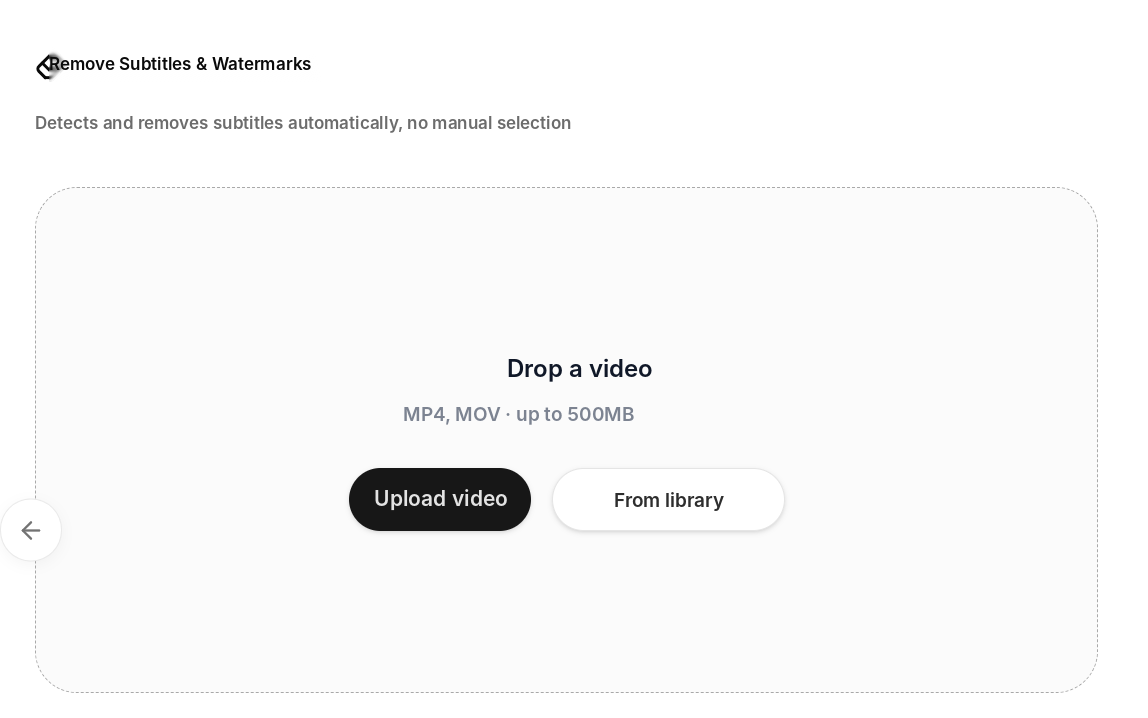
Step 1: Upload your video
Open Tools → Remove Subtitles & Watermarks and click Upload video, or pick one from your library. MP4, MOV and other common formats are supported, up to 500MB per file.
Before you upload, make sure the text and logos you want gone belong to you, or that you have permission to change them.
Step 2: Let Vibbit process it
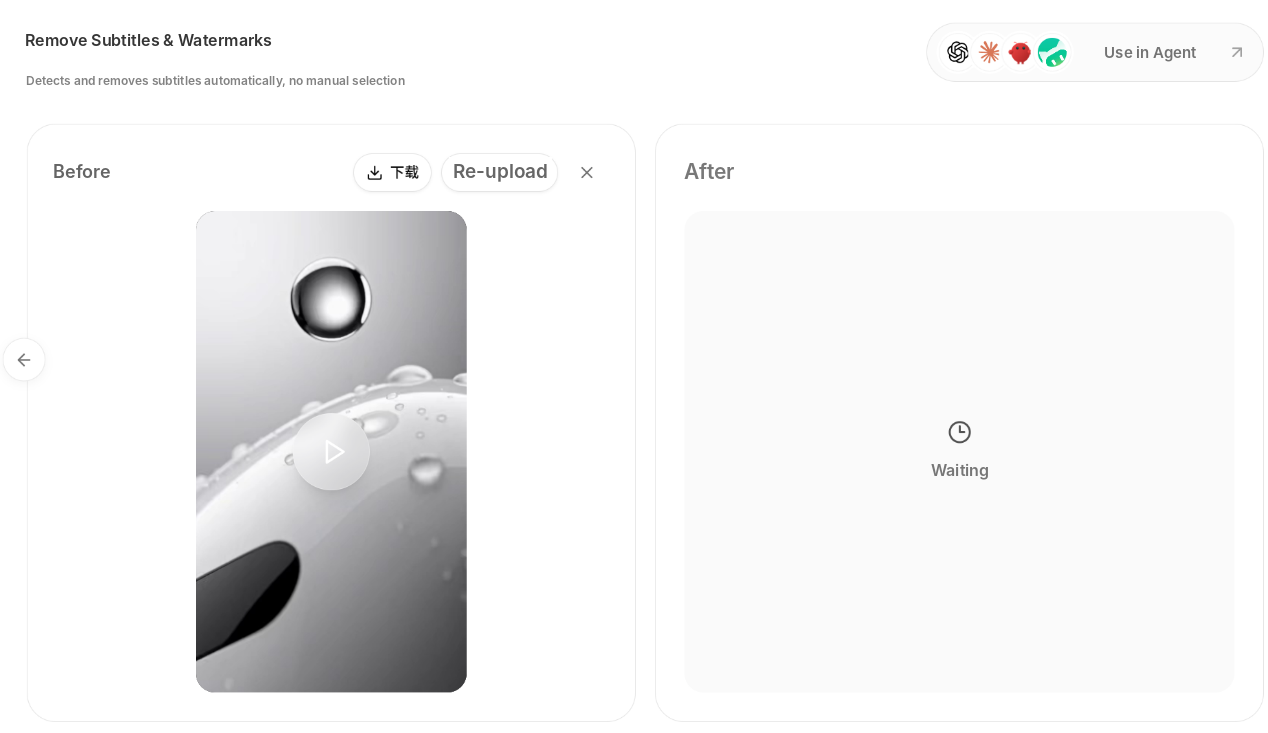
Once uploaded, the video appears in the Before panel and Vibbit starts detecting and removing the subtitles. You don't mark where the text is or adjust any settings.
Step 3: Check the result and download
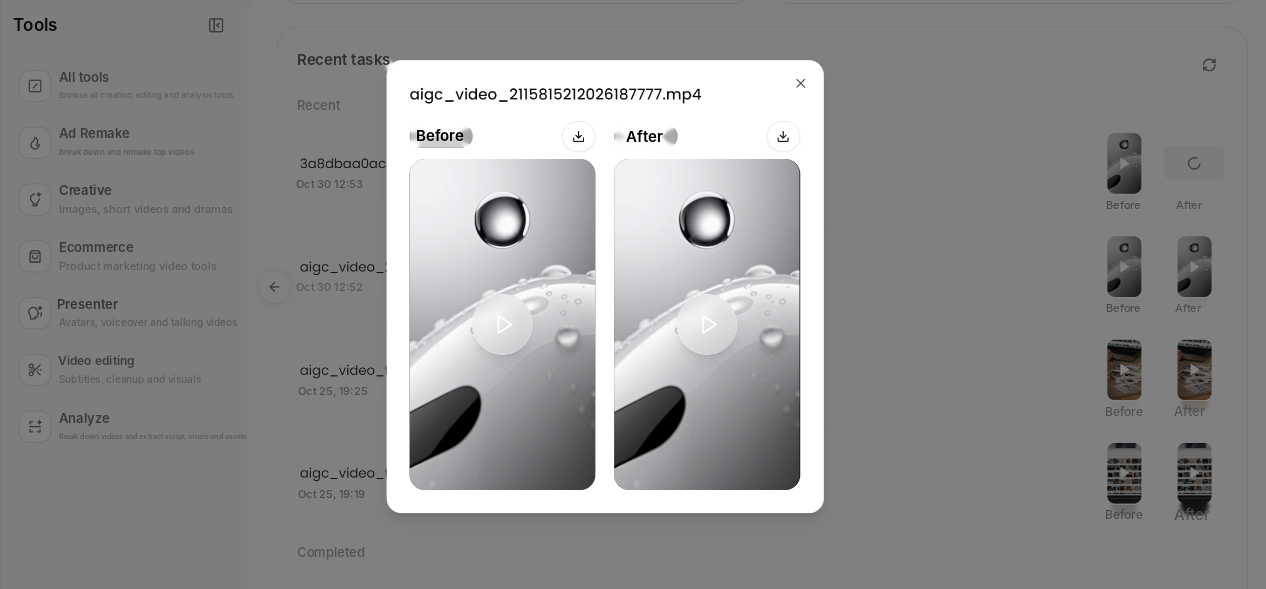
When it's done, open the result from your recent tasks and compare Before and After. Look closely at the spots where the subtitles and logo used to be. If it looks right, download it.
Tips before you remove text or logos
Only edit videos you own or are licensed to use. Don't remove someone else's copyright marks, brand logos or platform watermarks without permission.
Use the original file. Videos that have been compressed and re-shared several times lose quality, and that shows in the result.
Check more than the opening. Busy backgrounds and fast motion are where traces are most likely to show.
Keep a copy of the original. You'll want it if you re-edit or add new captions later.
Watch the whole thing before posting to YouTube, Instagram, TikTok or a product page.
FAQ
How do I remove a logo from video?
Upload the video to Vibbit's Remove Subtitles & Watermarks tool. It detects the subtitles and on-screen text and removes them automatically, with no manual masking.
Do I need to select the text area by hand?
No. Vibbit finds the subtitles and processes them for you.
Does removing text affect video quality?
It depends on the source. The busier the background behind the text and the faster the motion, the more carefully you should check. Start from the original file and review the areas where the text used to be.
Can I use it with no editing experience?
Yes. Upload, wait, download. No editing skills needed.
Can I post the cleaned video on social media?
Yes, for your own content on YouTube, TikTok or Instagram. Check the result first, and make sure you have the rights to the footage.
Clean up your footage with Vibbit
Upload, let Vibbit process it, download. Once the old captions are gone, you can add new ones with Auto Subtitles or translate the whole video with Video Translation.
Try it on Vibbit: vibbit.ai