How to Translate Online Course Videos Into Multiple Languages
Course translation with Vibbit: upload your lesson videos, pick several languages at once, set your terminology, review subtitles, then generate dubbed videos.
The most reliable way to handle course translation is to upload your course videos to Vibbit, select several target languages at once, add your course terminology to the translation instructions, and let Vibbit handle translation, dubbing and subtitles. Terms stay consistent, and you don't repeat the process for every language. For teachers who want students abroad, multilingual versions open up whole new markets for your course.
Where course creators get stuck with translation
Language is the big barrier. You sell courses on YouTube or your own site to students in North America, Europe or Latin America, but you can't record every language yourself, and freelance translators are slow and expensive.
Terminology makes it harder. Brand names and chapter titles come up again and again, and if one term is translated two different ways, students notice. It looks unprofessional and can hurt completion rates.
Why translating a course used to be slow and expensive
The old process: export subtitles, have a translator edit them line by line, hire voice actors for each language, then edit everything back into the video. Every step meant waiting on people and matching versions.
Three things made it hard: terms depended on someone's memory and drifted across chapters; every language meant running the whole process again, so three languages meant triple the time and cost; and subtitles and dubbing were done separately, so they often didn't match the lips or the timeline.
| Step | The old way | With Vibbit |
|---|---|---|
| Translation | Export subtitles, translate by hand | Upload the video, translated automatically |
| Terminology | Up to the translator, often inconsistent | Set in the instructions, consistent everywhere |
| Languages | One full run per language | Select several at once |
| Voiceover | Separate voice actors | Voice-cloned dubbing in 30+ languages |
| Delivery | Wait for subtitles, dubbing, editing | Review subtitles, then generate |
How to do course translation in Vibbit: 4 steps
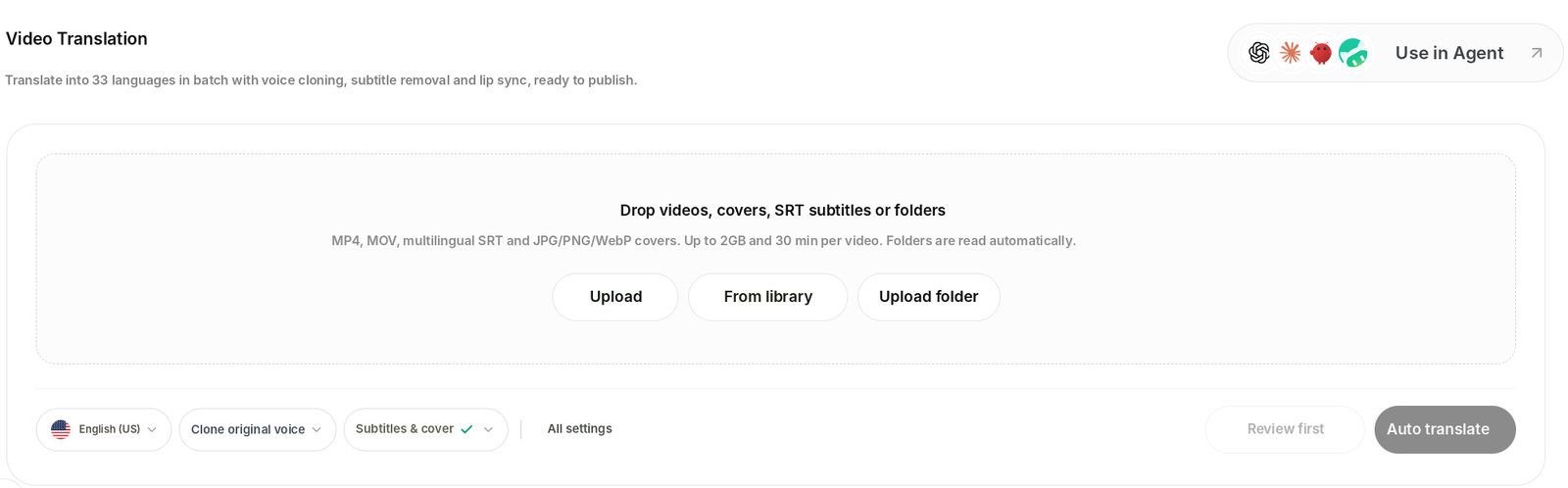
Step 1: Upload your course videos
Open Video Translation and drag in your videos, covers, SRT subtitles or a whole folder. Each video can be up to 2GB and 30 minutes. Dropped folders are read automatically, including subfolders, which suits courses organized by chapter.
For lessons longer than 30 minutes, split them by chapter and upload the parts together in one task.
Step 2: Select several target languages at once
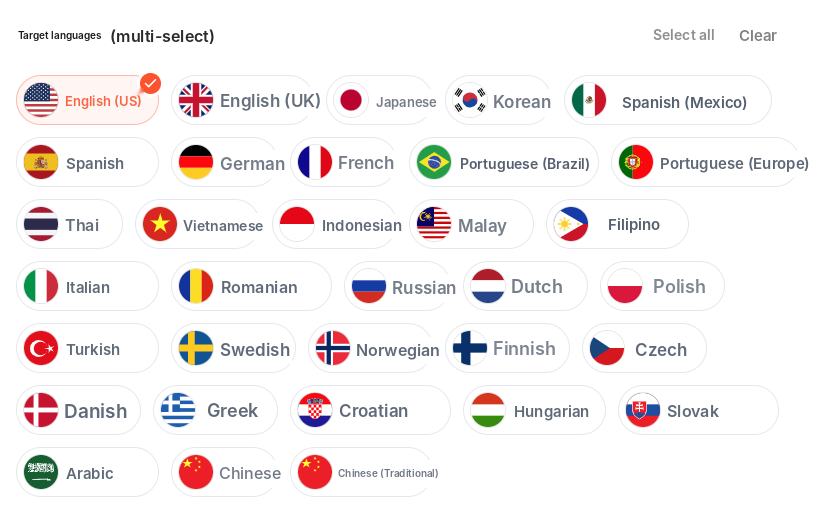
In the language panel, tick the languages you want, for example English (US), Spanish (Mexico) and Portuguese (Brazil). Vibbit processes them together.
Step 3: Add your course terminology
In the translation instructions, spell out how to handle brand names, course and chapter titles and technical terms, for example "keep brand names in the original; translate chapter titles as listed below." Vibbit keeps them consistent throughout.
You can also choose a translation style. Natural or Formal usually works best for lessons.
Step 4: Review first, then generate
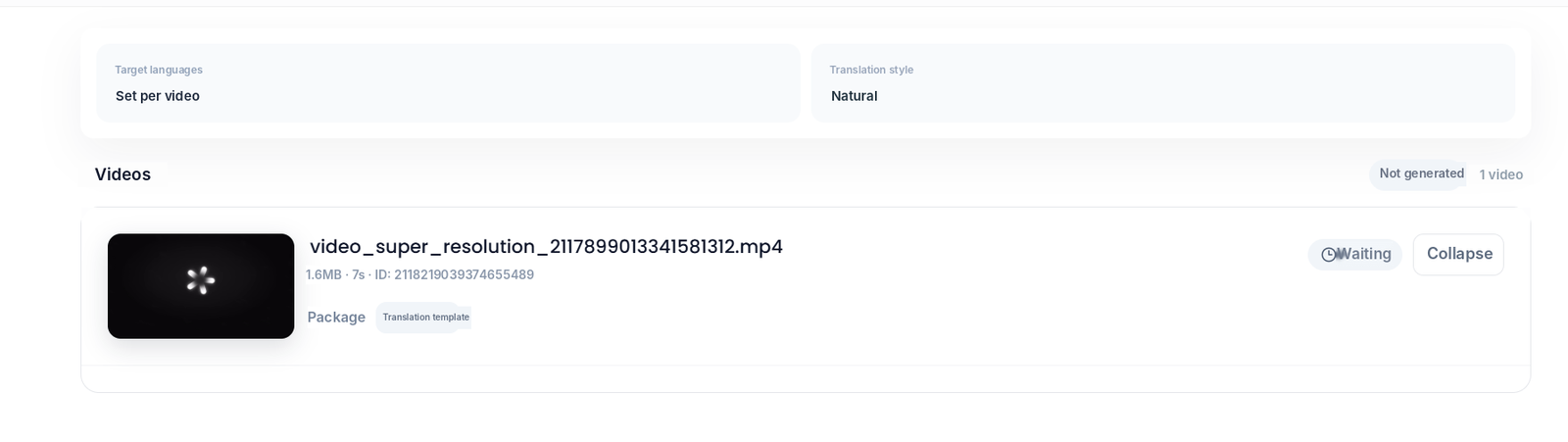
Turn on Review first. When processing finishes, check the subtitles: fix any misrecognized source text and the translation updates with it. Once the terms look right, generate the dubbed videos.
Before you submit, Vibbit shows the estimated credits based on video length, number of languages and whether lip sync is on.
How to check course terms so nothing gets mistranslated
Terminology is where course translation goes wrong most often. Add course terms, people's names and your channel name to the translation instructions, and Vibbit keeps them consistent.
If you spot a recognition error in the source text, fix it directly and the translation updates. You don't have to wait for the finished video to start correcting. Review as you go.
My example: a lesson split into chapters, translated into English, Spanish and Portuguese in one go. I ticked the three languages and added the product names and chapter terms to the instructions. During review I focused on the technical terms, then generated the dubbed versions. The terms stayed consistent in all three languages, and I didn't have to proofread each language separately.
If you have several courses to translate, one task holds up to 100 videos, with all your target languages selected at once.
FAQ
My lessons are long. Can I translate one in a single go?
Each video can be up to 30 minutes. Split longer lessons by chapter and upload them in the same task, with all target languages selected at once.
Can I get subtitles first and dub later?
Yes. Turn on Review first, check the subtitles in each language, then generate the voiceover and final videos.
Which languages are supported?
30+ languages, including English, Spanish, Portuguese, French, German, Japanese, Korean and Arabic, plus Swedish, Norwegian, Finnish, Czech and more.
Can I fix a single mistranslated line?
Yes. Find the line on the timeline in the editor, edit the translation and re-dub it. You can also redo lip sync for just that segment.
How much does it cost?
Vibbit uses credits, and you see the estimated cost before generating. Plans are at vibbit.ai/pricing.
Bring your course to more students
Upload your lessons, pick your languages, review, then generate. Only translate course content you own.
Try it on Vibbit: vibbit.ai