How to Edit YouTube Shorts Fast With AI: From Raw Clips to Captions
Edit YouTube Shorts with AI: remix clips or slice long videos, batch-package them in 9:16 with titles, then add captions. Full workflow in Vibbit.
Editing YouTube Shorts with AI comes down to three steps: pick an AI edit type that fits your footage, batch-package the results in vertical format with titles, then add captions. Vibbit works as an AI video editor for YouTube Shorts and takes over the repetitive parts: sorting clips, fixing the ratio and writing titles.
Why Shorts creators need an AI video editor
When you post Shorts regularly, the problem usually isn't a lack of footage. It's too much footage, slow editing and a schedule that's hard to keep.
A tech product channel, for example, might film unboxings, feature demos, hands-on impressions and comparisons. Turning that into a Short usually means:
Sorting: finding the usable parts in a pile of files.
Trimming: cutting what doesn't matter and reordering shots.
Pacing: keeping it short with quick cuts.
Going vertical: turning landscape footage into 9:16.
Captions: turning speech into subtitles for people watching on mute.
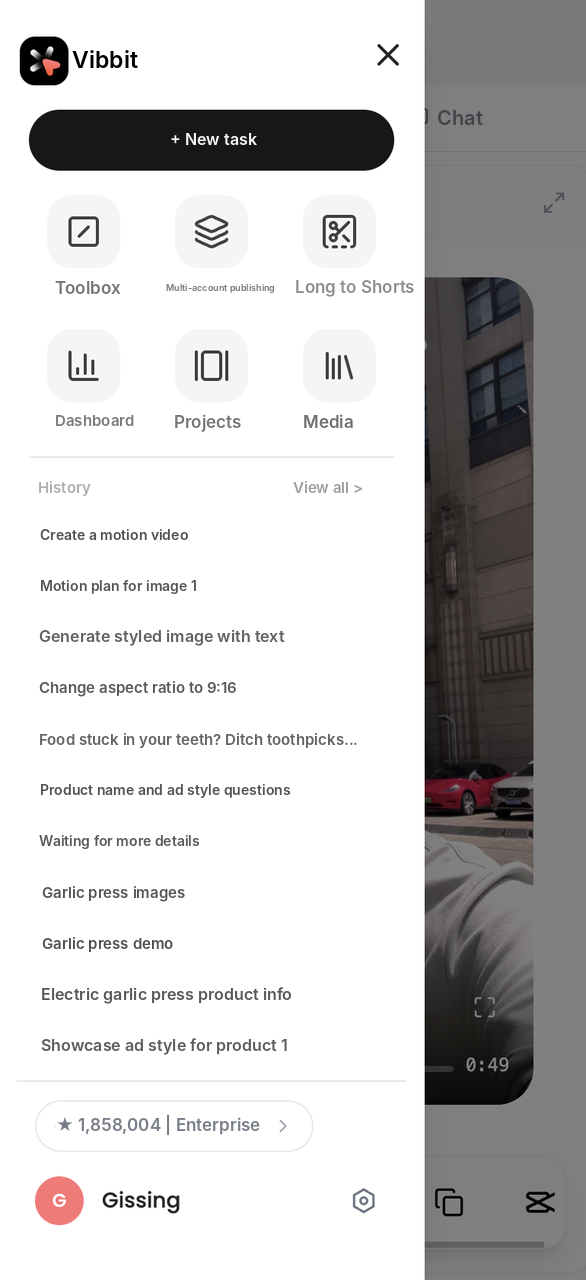
Doing all that from scratch for every Short eats your week. Vibbit offers AI Remix, Highlight Cut and Long to Shorts, so you can choose the one that matches your footage and hand off most of the repetitive work.
Which AI edit type should you use?
| Edit type | Best for | What it does |
|---|---|---|
| AI Random Remix | Several clips | Combines clips into a new video |
| AI Faceless Remix | Footage without a presenter | Videos with no one on camera |
| Highlight Cut | One full video | Keeps the key moments, tightens pacing |
| Long to Shorts | A long video | Slices it into several Shorts |
Filmed several product clips? Use AI Remix. Have one long product walkthrough? Use Long to Shorts.
How to make YouTube Shorts in Vibbit: 3 steps
Step 1: Gather your footage and pick an edit type
Collect the clips you want to turn into Shorts and choose an edit type. Separate clips work with AI Random Remix or Faceless Remix. A single full video works with Highlight Cut or Long to Shorts.
Product sellers: exterior shots, feature demos, use cases.
Educators: screen recordings, explanations, demos.
Lifestyle creators: travel, daily life, events.
If you have a lot of footage, import it into your Media library first. Vibbit analyzes it automatically, so finding clips later is faster.
Step 2: Batch-package in vertical format and generate titles
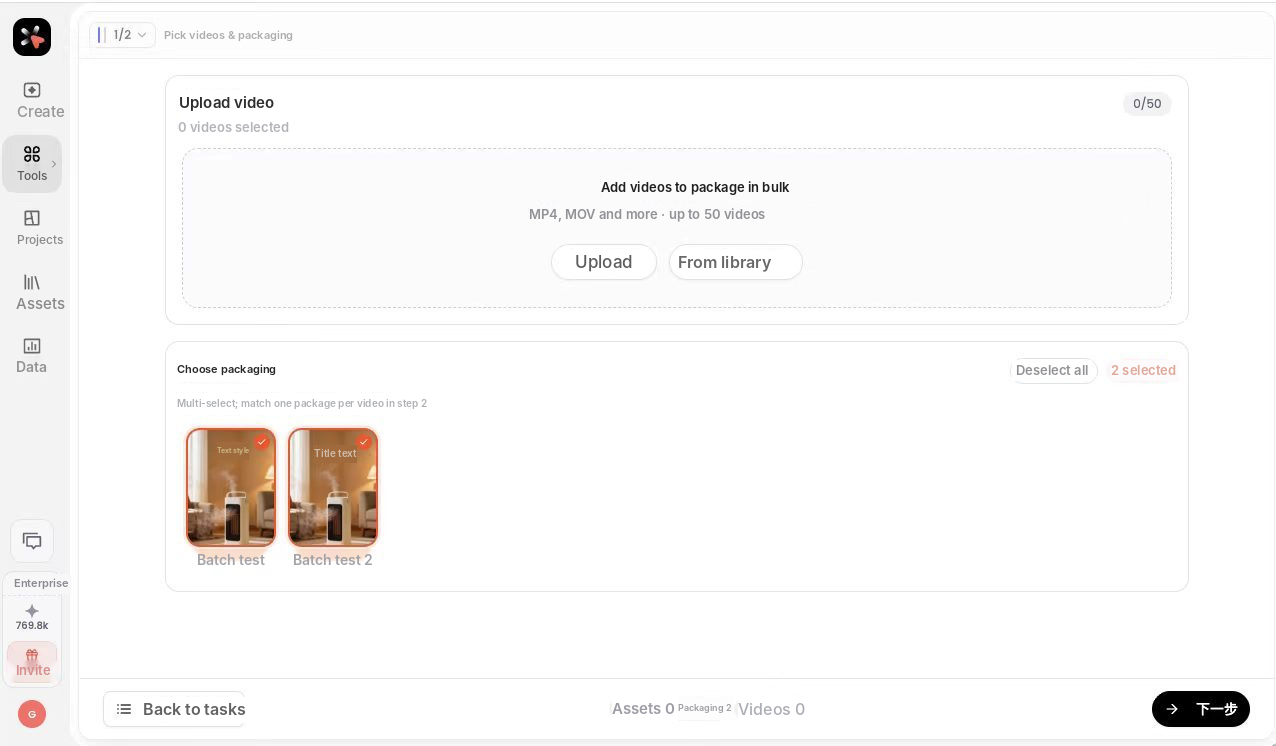
Use Batch packaging to process edited videos together: upload or pick videos from your library (up to 50 at a time), choose a package style, and Vibbit applies a package to each video.
In the package settings, set Force output ratio to Vertical so landscape footage comes out in 9:16. If the footage is already vertical, choose Follow original. Videos made with Ad Remake follow the reference video's orientation automatically.
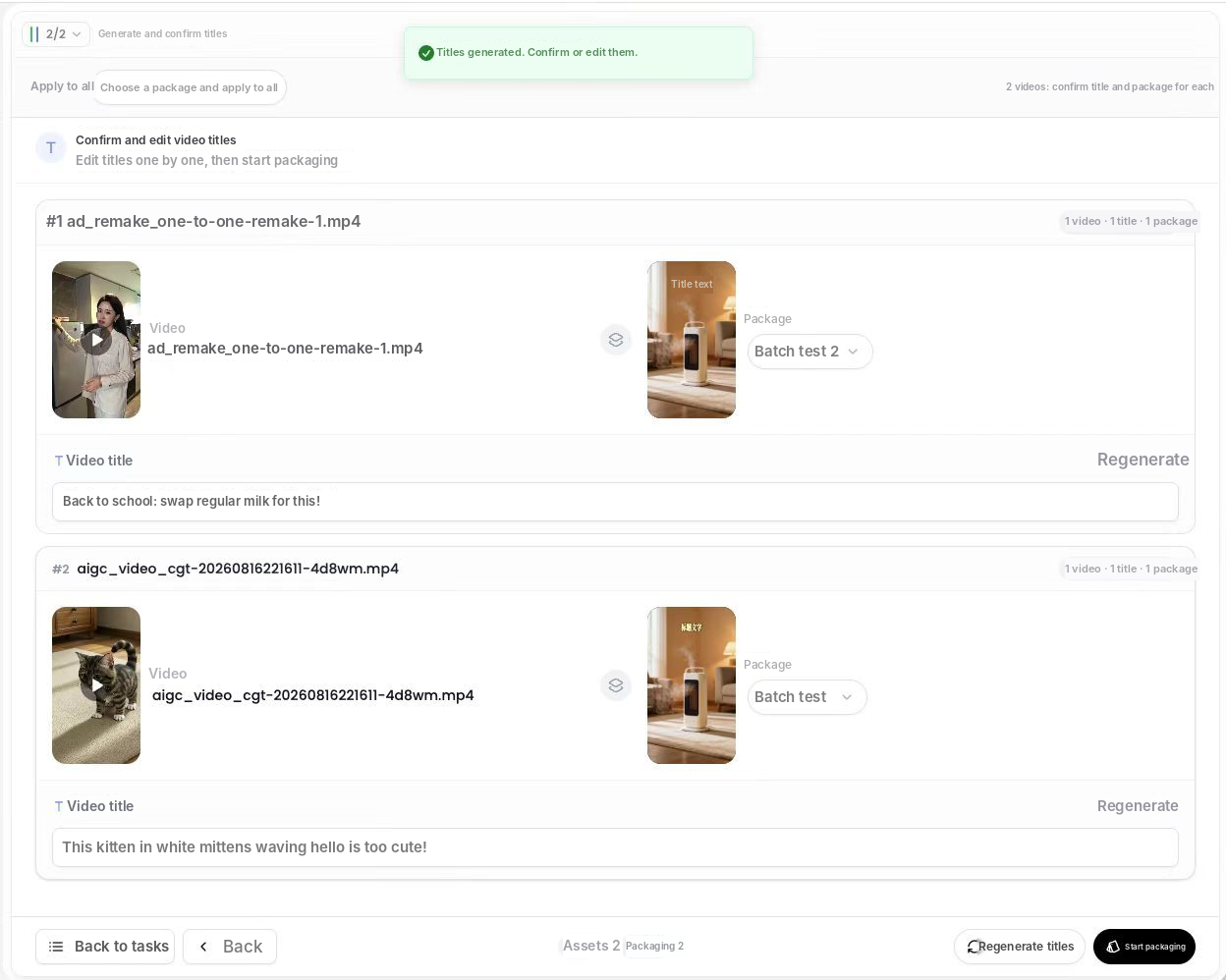
Next, Vibbit generates a title for each video. Edit any of them, confirm, and start packaging.
Step 3: Add captions, check and export
Finally, add captions. Vibbit's Auto Subtitles turns speech into captions automatically. You can then edit the captions line by line.
When you check captions, look at:
Accuracy: they match what's actually said.
Position: they don't cover the product or key visuals.
Readability: large and clear enough on a phone.
Timing: they appear and disappear in sync with the voice.
Do a final pass on ratio, audio and overall feel, then export and post.
Example: turning product footage into Shorts
A Shopify seller has four kinds of clips: exterior, feature demo, in-use and close-up details. In Vibbit:
| Stage | Action | Result |
|---|---|---|
| Prep | Import product and lifestyle clips | A set of clips to edit |
| AI edit | Choose AI Remix | Clips combined into a video |
| Vertical packaging | Force output ratio: Vertical, generate titles | 9:16 videos |
| Captions | Auto Subtitles, checked line by line | Captioned videos |
| Final check | Review visuals, captions and audio | Ready to post |
To make several Shorts for each of several products, combine batch tasks with automatic media analysis. If you already have a reference video that performs well, Ad Remake can follow its structure.
FAQ
What is an AI video editor for YouTube Shorts?
An AI editing tool that helps you make Shorts: it processes clips, remixes them, pulls highlights from long videos and adapts everything to vertical format.
Can I make Shorts in Vibbit with no editing experience?
Yes. Choose AI Random Remix, Faceless Remix, Highlight Cut or Long to Shorts based on your footage, instead of cutting clip by clip.
Can landscape videos become Shorts?
Yes. Set Force output ratio to Vertical in the package settings.
Can Vibbit add captions to Shorts?
Yes. Auto Subtitles generates captions you can review line by line. Edit any line that needs fixing.
Can I process several Shorts at once?
Yes. Batch packaging handles up to 50 videos at a time, and batch tasks plus automatic media analysis save a lot of repeat setup.
Make Shorts faster with Vibbit
Shorts aren't just long videos cut down. You also need the right clips, pacing, ratio and captions. Pick an AI edit type, batch-package in vertical, add captions, and most of the repetitive work is gone.
Try it on Vibbit: vibbit.ai