What Is Lip Sync and How Do You Do It? A Complete AI Lip Sync Video Guide
Make an AI lip sync video in Vibbit: upload, pick target languages, turn on Lip sync in Video Translation, then fine-tune line by line. Steps and tips.
Lip sync means matching the speaker's mouth movements to the audio. With an AI lip sync video tool, you can dub a video into another language and the speaker's lips follow the new voice, so you avoid the awkward look of lips moving in English while the audio is in Spanish.
In Vibbit, lip sync is a switch inside Video Translation: upload the video, choose the target language, turn on Lip sync, generate, then review it line by line.
What is an AI lip sync video, and why does it matter?
Say you recorded a product intro in English and want to post it on a Spanish-language YouTube or TikTok account. If you only swap the voiceover, the lips still move to English rhythm and viewers notice immediately.
AI lip sync adjusts the mouth movements to the new audio, so picture and voice line up.
| Without lip sync | With AI lip sync | |
|---|---|---|
| Mouth movement | Stays as in the original | Adjusted to the new voice |
| Voice and picture | Often out of sync | Much closer match |
| Other languages | Looks off after dubbing | Looks natural |
| Viewer experience | Easy to get distracted | Smoother delivery |
It's especially useful for:
YouTube creators turning English videos into Spanish or Portuguese versions to reach more countries.
TikTok creators making product or talking-head videos in several languages.
Shopify and Amazon sellers localizing product videos.
Online teachers dubbing lessons for students who speak other languages.
How to make a lip sync video in Vibbit: 3 steps
Step 1: Upload your video and set translation instructions
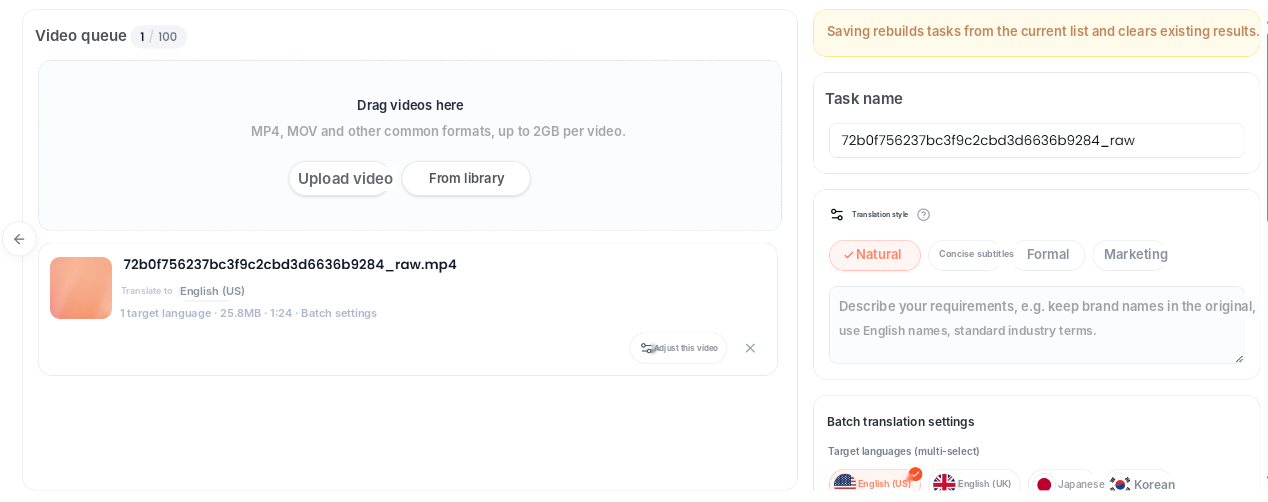
Open Video Translation and drag your video into the queue. One task holds up to 100 videos, up to 2GB each.
Pick videos where the speaker's face is clear and the speech is complete. Vibbit handles speech recognition, voice separation, translation, subtitles and dubbing.
On the right, choose a translation style (Natural, Concise subtitles, Formal or Marketing) or write specific instructions, such as "keep brand names in the original, use English names for people, use standard industry terms."
Step 2: Choose target languages and turn on Lip sync
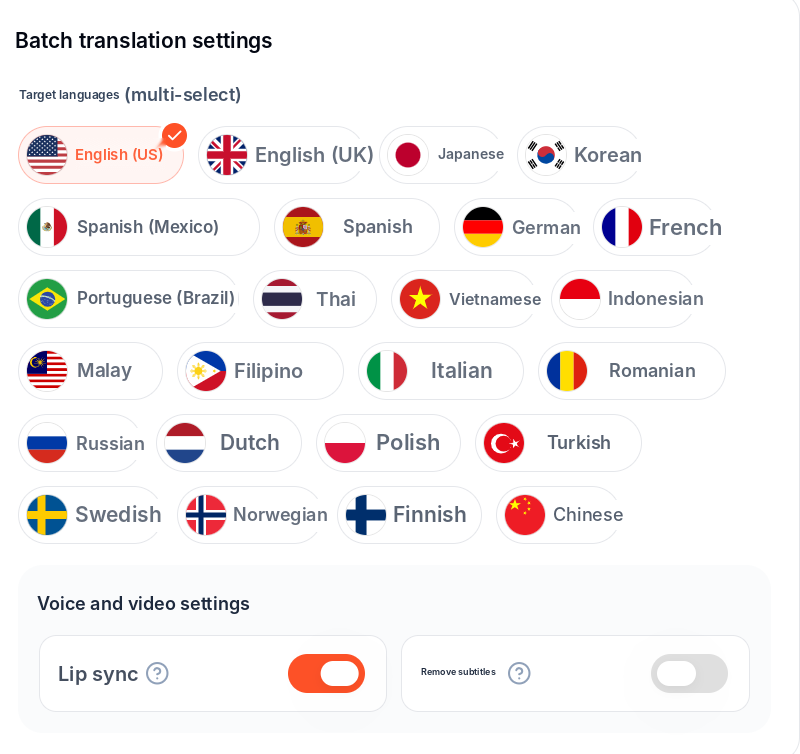
In Batch translation settings, choose one or more target languages, for example English (US), Spanish (Mexico) and Portuguese (Brazil).
Under Voice and video settings there are two switches: Lip sync and Remove subtitles. Turn on Lip sync so the speaker's mouth matches the new voice. If the original has burned-in subtitles, turn on Remove subtitles too.
Lip sync isn't just a voice swap. It changes the mouth movement, so switch it on before you generate.
Step 3: Generate and review line by line
Click generate and wait for processing. Then watch the whole video, paying attention to stretches of continuous speech.
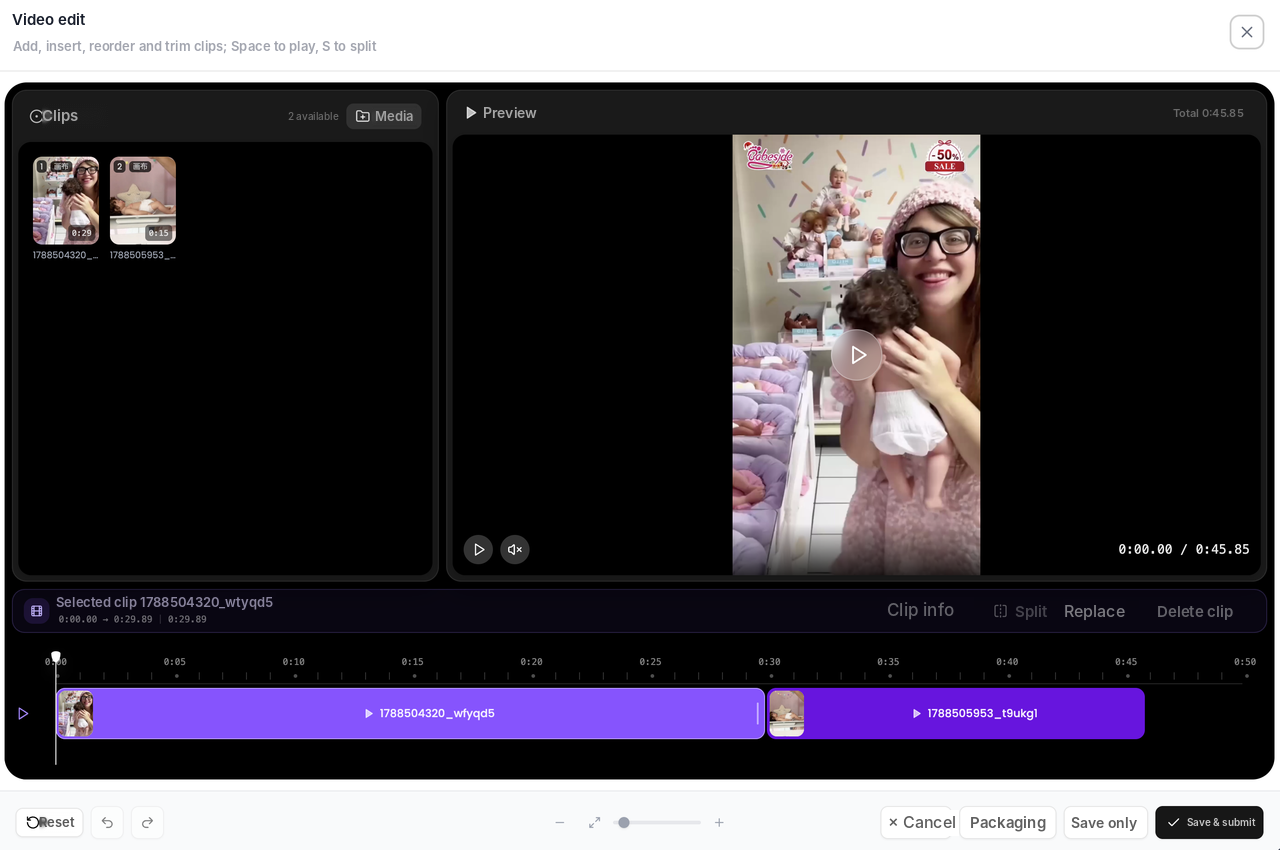
If a line's translation or dubbing isn't right, open the editor, find that line on the timeline, and edit the translation, re-dub it or adjust the clip. You can redo lip sync for just that segment instead of the whole video.
Tips for natural-looking lip sync
Use videos with a clear view of the face. A covered face or a speaker turned away makes lip sync much harder.
Start with clean audio. Less background noise means more accurate recognition and translation.
Mind the length difference between languages. The same sentence runs longer in Spanish than in English. Keep the translation natural instead of forcing word-for-word matches.
Check sentence transitions. Continuous speech and changes between lines are where problems show up.
Lock terms in your instructions. Add brand, product and people's names up front so they stay consistent.
FAQ
How is AI lip sync different from regular dubbing?
Regular dubbing replaces the voice but leaves the mouth unchanged. AI lip sync adjusts the mouth to the new audio, so the speaker looks like they're speaking the new language.
Can I turn an English video into Spanish?
Yes. Choose Spanish as the target language in Video Translation, turn on Lip sync, and generate.
Do I have to adjust every line by hand?
No. Turn on Lip sync before generating. Afterwards, fix only the lines that need it from the timeline.
What if one line looks unnatural?
Find it in the editor, adjust the translation or re-dub it, then redo lip sync for that segment.
Which languages are supported?
Vibbit Video Translation supports 30+ languages, including English, Spanish, Portuguese, French, German, Japanese and Korean.
How much does it cost?
Vibbit uses credits, and you see the estimated cost before generating. It depends on video length, number of languages and whether Lip sync is on. Plans are at vibbit.ai/pricing.
Make multilingual lip sync videos with Vibbit
A voice swap alone pulls viewers out of the video. Turn on Lip sync so the speaker keeps up with the new language. Only translate videos you own or have permission to use.
Try it on Vibbit: vibbit.ai