How to Remove Text From Video: A 3-Step Guide with Vibbit
How to remove text and burned-in subtitles from a video without masking frames by hand. Upload, remove, check and export with Vibbit.
If you're wondering how to remove text from video, the quickest way is an AI tool that finds the subtitles for you. In Vibbit, you upload the video, let it remove the subtitles, then check the result and export it. You don't need to draw boxes around the text frame by hand.
This is useful for anyone working with clips that already have captions burned in: YouTube creators reusing footage, TikTok and Instagram Reels creators, or Shopify sellers updating old product videos.
How to remove subtitles from a video with Vibbit
It takes three steps: upload, remove, export.
Step 1: Upload the video
Open Tools → Remove Subtitles & Watermarks in Vibbit and upload your file, or pick one from your library. MP4 and MOV are supported.
Before you upload, watch the video once and note where the text appears and whether it runs the whole way through. That makes checking the result much faster later.
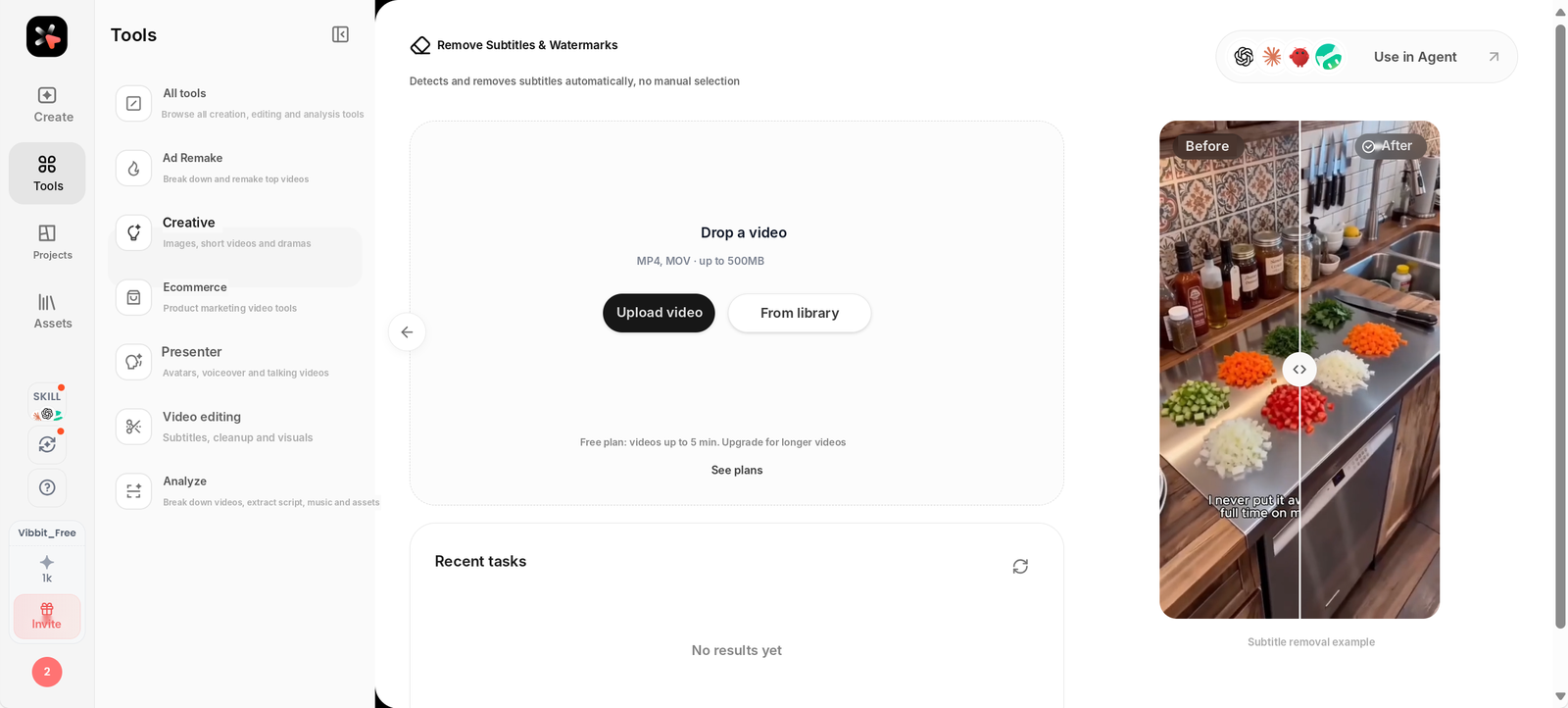
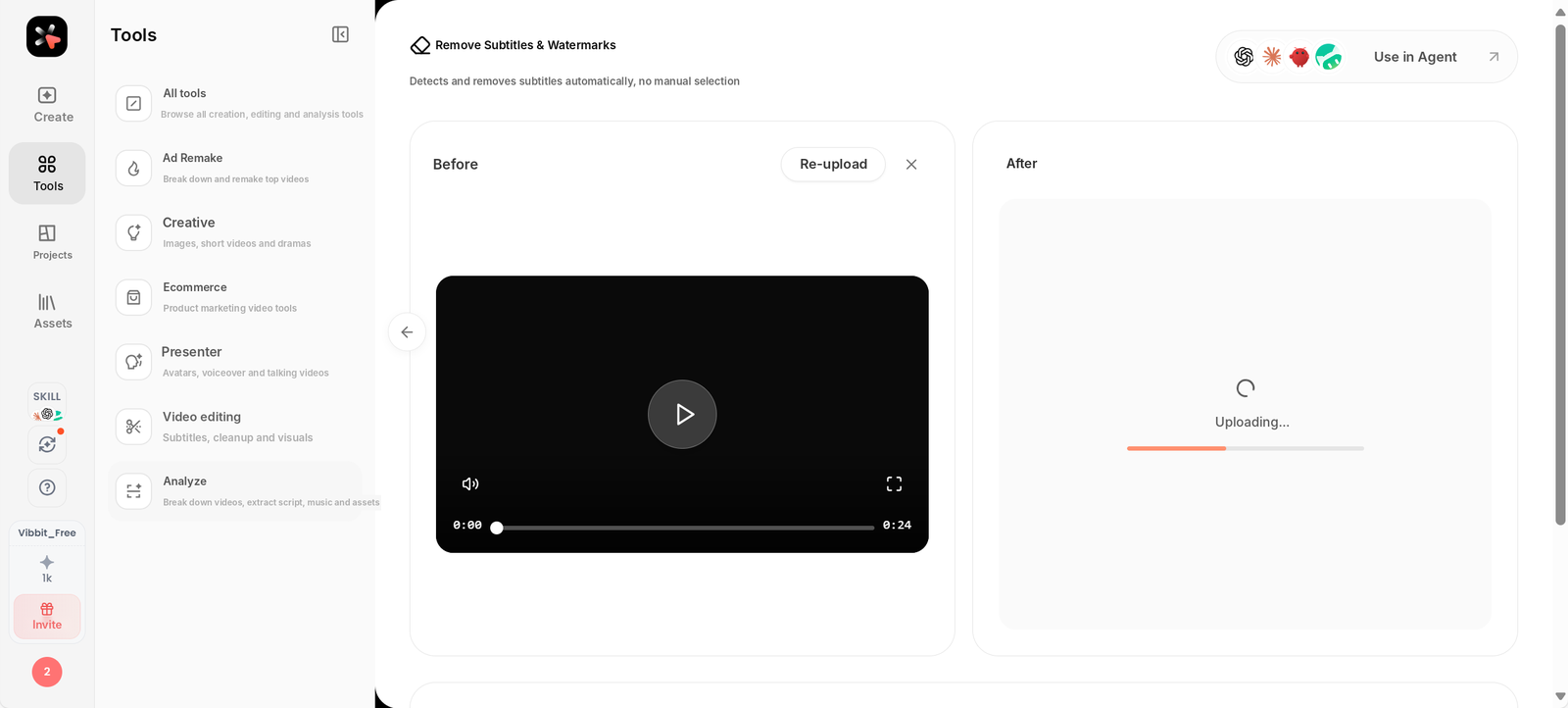
Step 2: Let Vibbit remove the subtitles
Once the upload finishes, Vibbit detects the subtitles and removes them automatically. There's no manual masking.
When I tried it, a 3-minute video was done in about 2 minutes, and the original subtitles came out clean. Results always depend on the footage, though: where the text sits, how busy the background is, and whether the text covers anything important. Always preview before you export.
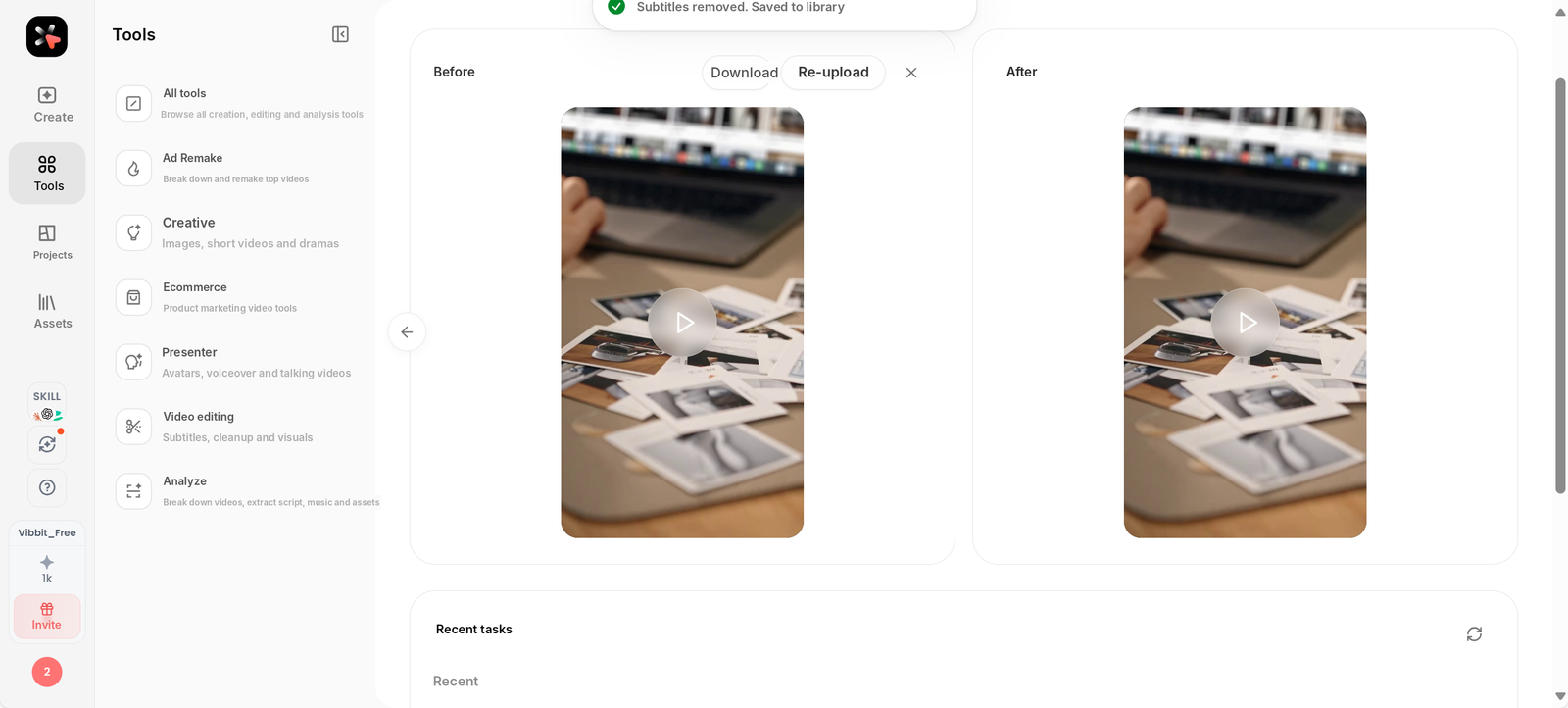
Step 3: Check the result and export
Look closely at the spots where the text used to be, especially in fast-moving shots or over detailed backgrounds. Scrub to a few different points in the video rather than checking only the opening seconds. When it looks right, download the video.
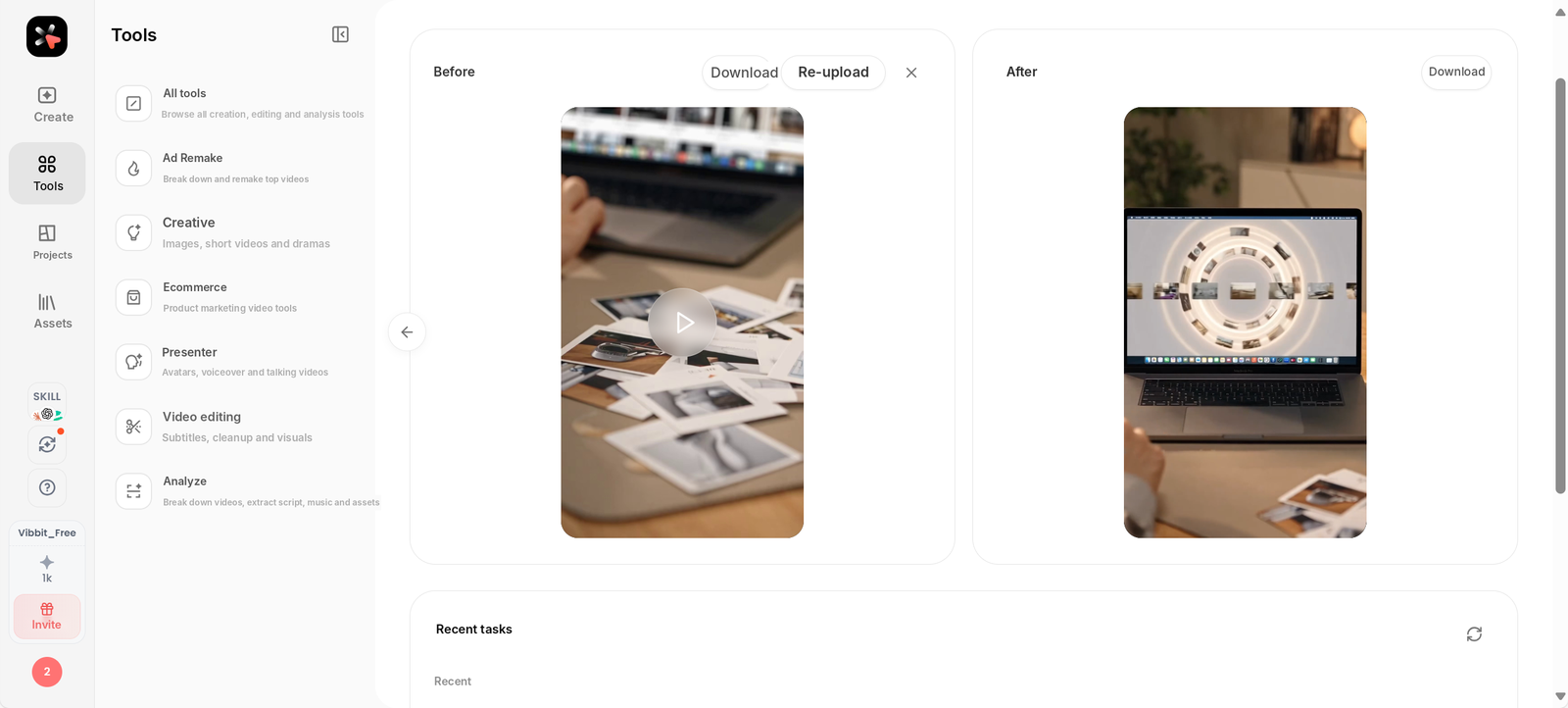
Before and after
The clearest way to judge the result is to compare the same frame before and after.
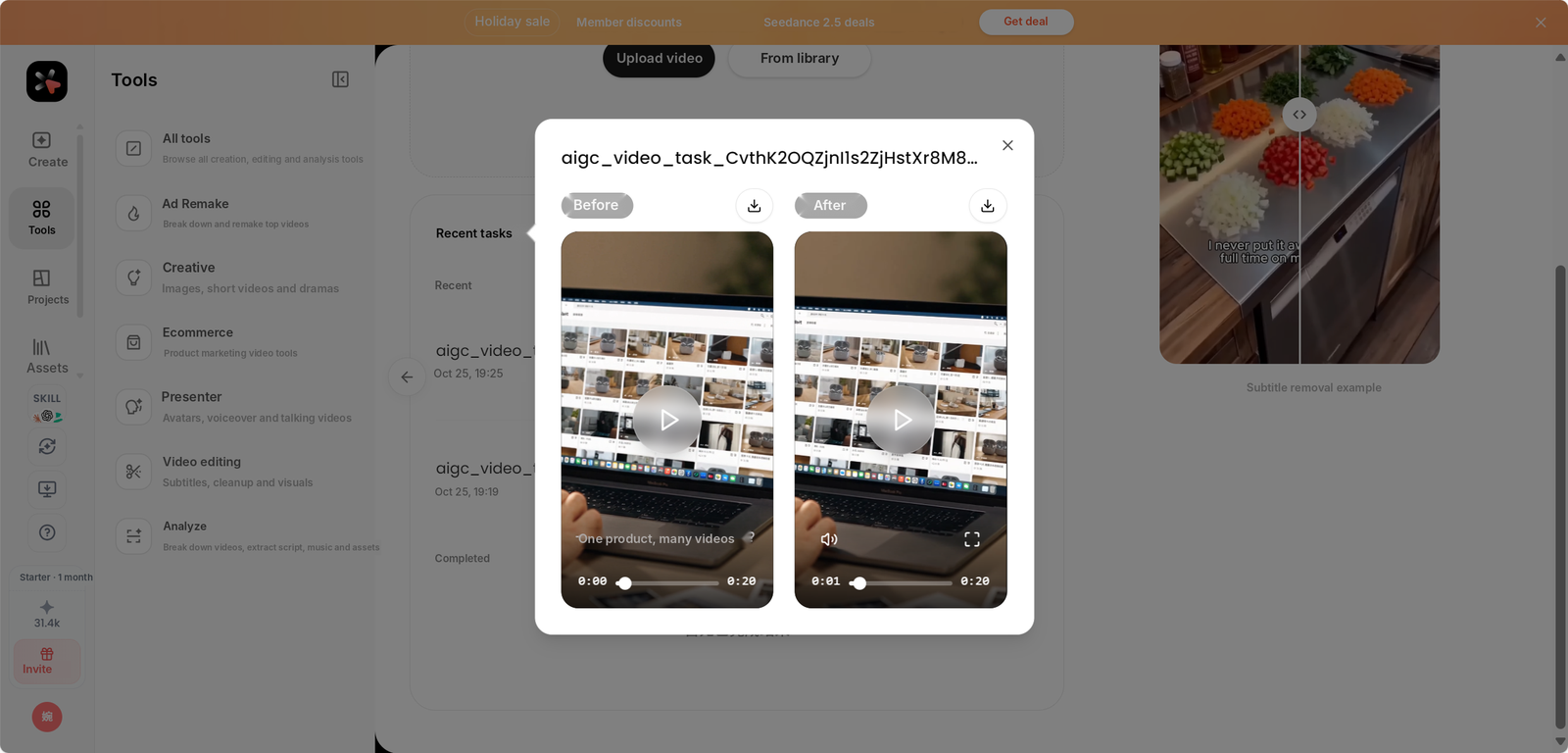
| Before | After Vibbit | |
|---|---|---|
| Subtitles | Burned-in text on screen | Detected and removed automatically |
| Effort | Find a tool and mask frames by hand | Upload and wait |
| Subtitle area | Covers faces, products or background | Clean frame you can review |
| Reuse | Hard to repost or localize | Ready for new captions or another language |
Does removing subtitles affect video quality?
The result depends on the original footage, so not every video will look the same. A few tips:
- Start with a clear source. The sharper the video, the easier it is to review the cleaned area.
- Check busy backgrounds. If text sat over faces, product details or complex textures, look at those spots carefully.
- Check more than the beginning. Subtitles can move around or change size during the video.
- Preview before you export. Make sure the text is gone and nothing else looks off.
- Only edit footage you have rights to. Removing subtitles doesn't give you permission to reuse someone else's video.
FAQ
How do I remove subtitles without masking the text by hand?
Upload the video to Vibbit's Remove Subtitles & Watermarks tool. It detects and removes the subtitles automatically. Then preview the result and export.
Do I need to install editing software?
No. Vibbit runs in your browser. Check the upload page for current file size and length limits.
Can I post the cleaned video on TikTok, Instagram or YouTube?
Yes, once you've checked the result and confirmed it meets the platform's requirements. If the footage belongs to someone else, make sure you have permission to edit and publish it.
Why does the area where the subtitles were sometimes look less natural?
Subtitles sit on top of the original picture. After removal, the fill depends on how complex the background is and how much the scene moves. Compare the same frame before and after, focusing on faces, products and fine detail.
Can I add subtitles in another language afterwards?
Yes. A clean video is the perfect base for new captions. You can add subtitles with Vibbit's Auto Subtitles tool, or translate and dub the whole video with Vibbit Video Translation.
Remove text from your video with Vibbit
If you need a simple way to remove text from video, Vibbit cuts out the manual masking. Upload, let it remove the subtitles, check the result and export.
Upload a video to Vibbit and see how clean it comes out: vibbit.ai